
Basics
Add, move and remove widgets
Click Add on a widget in the library to put it on your desktop. Right-click a widget on the desktop to move, resize or remove it.
Add a widget
- Open the Widgetscape window.
- Find the widget in All Widgets or a category, or search for it.
- Click Add on its card.
Widgetscape puts the widget on the best free spot of the display the Widgetscape window is on, beside the widgets already there. If that display is full, it uses another display.
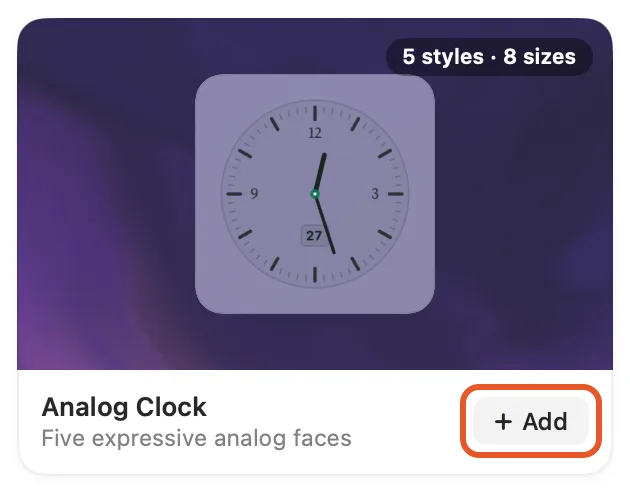
You can also add a widget from its settings page: click Add to Desktop. With a card selected, ⌘Return or + adds it too.
If a widget is already on your desktop, Add puts another copy on it, with the same settings. The card’s menu then says Add Another to Desktop.
Choose where it goes
To put a widget on a spot you choose, drag its card from the library to the desktop. Or right-click the card and choose Place on Desktop, then click the spot.
While you place a widget:
- Other apps’ windows hide and the Widgetscape window fades, so you can see the desktop. They come back afterwards.
- A ghost of the widget follows the pointer and snaps to the grid. Hold ⌘ to place it freely.
- Press Esc to cancel.
Widgets that need access
Some widgets need a permission or an account first, such as Calendar or Email. Before one goes on your desktop, a sheet shows what it reads and where it goes.
- Click the main button, such as Allow, to give access and place the widget.
- Click Later to place it now; it asks again on your desktop.
- Click Cancel to leave it off the desktop.
Weather shows this sheet too, for what it sends to the weather service. Click Place Widget to add it.
See Permissions and privacy and Calendars, email and location.
Pro widgets after the trial
When the trial has ended, adding a Pro widget shows how to unlock Pro instead. Nothing is added. See Free widgets, trial and Pro.
When there’s no room
If every display is full, you see No room for and the widget’s name. Remove a widget, choose a smaller size, or drag the new widget onto another one to stack them. See Stacks.
Move widgets
While the Widgetscape window is open on screen, drag any widget on the desktop to move it. When the window is closed, a click goes to the widget instead, so nothing moves by accident.
To move widgets at any time:
- Right-click a widget on the desktop, then choose Move Widgets. Every widget shows an outline, and a bar at the bottom of each display reads Move Widgets.
- Drag widgets where you want them.
- Click Done or press Return.
- Widgets snap to the grid, to the edges of their neighbors and to equal gaps. Green distances match the others; orange ones don’t.
- Hold ⌘ while you drag to place a widget freely.
- Click a widget, then press an arrow key to move it by one point. Hold ⇧ to move it by a whole cell.
- Press Esc to put every widget back where it was.
- Clicking the desktop, or a minute without dragging, also keeps your changes.
The first time you choose Move Widgets, a short tour shows these steps. Click ? on the bar to see it again.
To arrange widgets for more than one display or for the Lock Screen, see Displays and the Lock Screen.
Sizes
Every widget fits a grid of square cells. Most widgets come in eight sizes:
| Size | Cells (wide × high) |
|---|---|
| Small | 1 × 1 |
| Medium | 2 × 1 |
| Tall | 1 × 2 |
| Wide | 3 × 1 |
| Large | 2 × 2 |
| Landscape | 3 × 2 |
| Extra Large | 4 × 2 |
| Huge | 4 × 4 |
To change a widget’s size, right-click it on the desktop and choose Size. You can also use the Size item in the card’s menu, or the Styles & Sizes tab of its settings. See Change a widget.
All widgets in a stack share one size.
The widget’s menu
Right-click a widget on the desktop to see:
| Item | Does |
|---|---|
| Move Widgets | Starts or ends moving widgets |
| Size | Changes the size |
| Style | Changes the style, for widgets with more than one |
| Header | Shows or hides the widget’s Title and Status, for widgets with a header |
| Customize (⌘,) | Opens the widget’s settings in the Widgetscape window |
| Open Widgetscape | Opens the Widgetscape window |
| Stack With | Stacks the widget with another one on the same display |
| Hide in This Setup | Hides the widget with the displays connected now; appears when you use more than one display setup |
| Remove from Desktop (⌘⌫) | Takes the widget off the desktop; on a stack, Remove Stack from Desktop |
Some widgets add their own items. Day Timeline, for example, has Thickness and Position, and Weather has Weather Data Sources. A stack adds Rotate, Edit Stack, a Remove from Stack item for its page and Unstack. See Stacks.
Remove a widget
Right-click the widget on the desktop, then choose Remove from Desktop (⌘⌫).
You can also remove it from the Widgetscape window: right-click its card and choose Remove from Desktop, or click Remove from Desktop on its settings page.
The widget stays in the library with its settings. Add it again and it comes back as you left it. Removing a stack removes all its widgets.
Click a widget
Clicks go to the widget. Many widgets have their own controls, such as Focus Timer’s Start and Pause. Each widget’s page in Widgets says what it does.
A click on Calendar, Agenda, Day Timeline, Reminders, Email or Now Playing opens the app that goes with it. Choose another app, or nothing, with On click in the widget’s Content tab.
Some of these widgets show + when you hold the pointer over them. It adds an event or a reminder, or starts a new message. It saves only with access you’ve already allowed. To hide it, turn off Add button in the widget’s Content tab.