
Widgets
This Mac widgets
Storage, batteries and running time for your Mac and its accessories. Click any widget in This Mac to open its settings page, then click Add to Desktop.
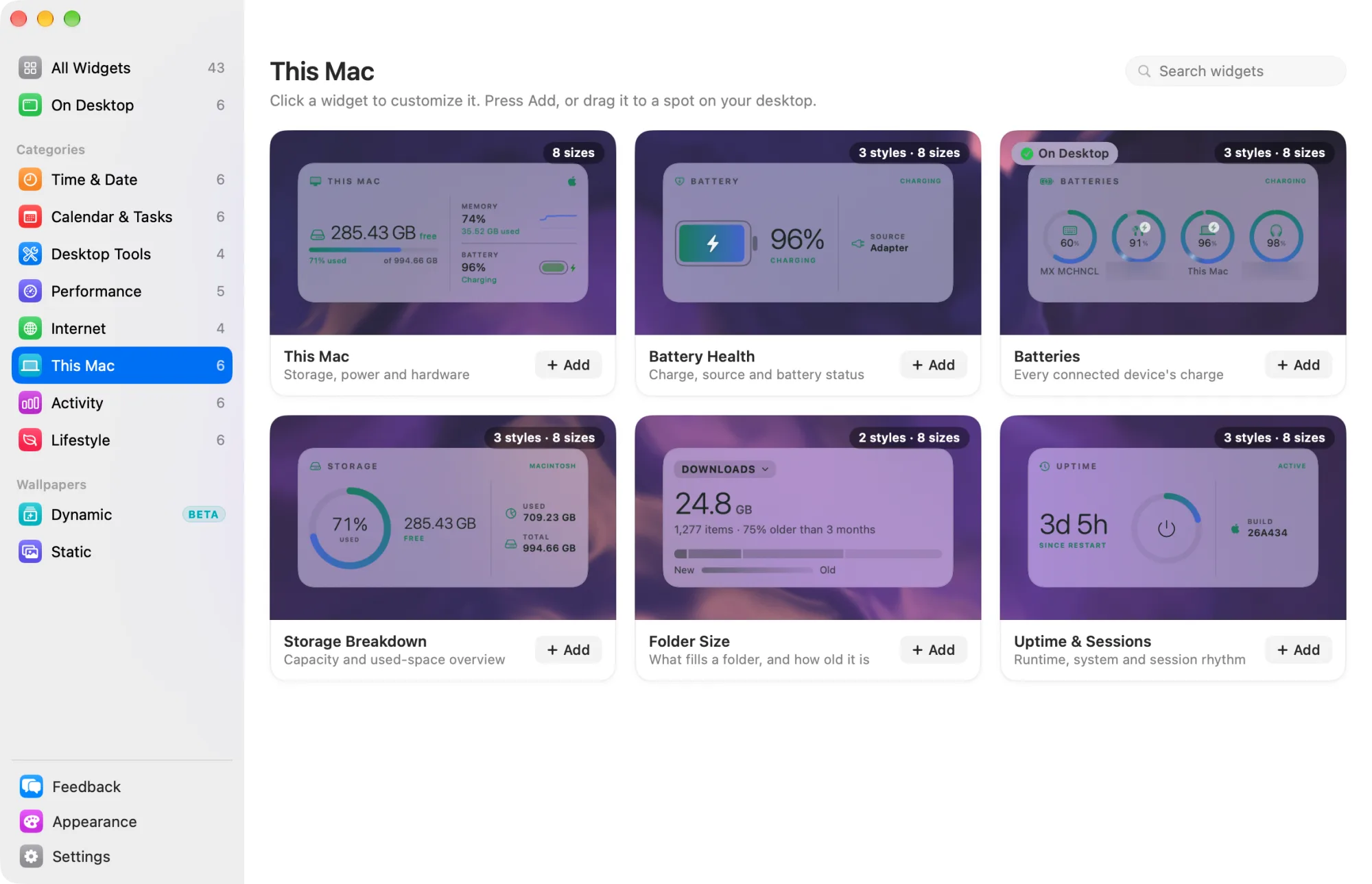
None of these widgets uses the internet. What they read stays on this Mac. Readings pause while your displays are asleep or the screen is locked.
Widgets marked Free are among the 8 free widgets that keep working after the trial. The others need Widgetscape Pro. See Free widgets, trial and Pro.
This Mac
Storage, power and hardware in one widget. Pro
- Styles: none. The layout changes with the size.
- Default size: Medium (2×1).
- Needs: nothing.
- Settings: none of its own. There is no Content tab.
- On the desktop: no click actions.
Small shows free disk space, the thermal state and uptime. Medium and larger add memory and battery or power rows. Larger sizes add the chip, the number of displays and the macOS version. Huge adds charts for system load and memory.
Free space includes space macOS can clear when it needs it. The power row shows the battery level on a laptop, and “Balanced” or “Low power” on a Mac without a battery.
Battery Health
Charge, source and battery status. Pro
- Styles: Charge (default) shows the level at a glance. Health shows capacity and cycles. Power shows the source and the time remaining.
- Default size: Medium (2×1).
- Needs: nothing.
- Settings: the style only. There is no Content tab.
- On the desktop: no click actions.
Health compares the battery’s maximum capacity with its capacity when new. The widget also shows the cycle count and the condition macOS reports. The header status reads Charging, On Battery, or Low below 20%.
On a Mac without a battery, the widget says so and shows Desktop Mac.
Batteries
Every connected device’s charge. Free
- Styles: Rings (default) shows a ring per device. List shows rows with level bars. Minimal shows glyphs and numbers only.
- Default size: Medium (2×1).
- Needs: nothing. No Bluetooth permission is asked for.
It shows this Mac’s battery and the Bluetooth accessories and game controllers that macOS lists in its Battery menu. AirPods show the left bud, the right bud and the case. The most discharged device comes first.
Settings, on the Content tab:
| Setting | What it does |
|---|---|
| This Mac | Shows the Mac’s own battery, on a laptop. |
| Time remaining | Hours left, or the time to a full charge. |
| Low battery | 10% to 30%. At or below it, a device shows in orange. The default is 20%. |
| Devices | Turn off the devices to hide. |
On the desktop, point at a device to see its full name, level and status.
Storage Breakdown
Capacity and used-space overview. Pro
- Styles: Capacity (default) shows used and available space. Categories shows a ring split by category. Balance puts free space first.
- Default size: Medium (2×1).
- Settings: the style only. There is no Content tab.
- Needs: nothing to set up. Widgetscape Agent reads folder sizes read-only. If macOS ever refuses a folder, the Privacy tab offers to open System Settings. See Permissions and privacy.
The categories are Applications, Documents, Downloads, Photos (your Pictures folder), Music, Movies, Developer, and Other & system. Only folder sizes are read, never file names or contents. Folder sizes are measured at most every 30 minutes. A folder macOS won’t let it read counts toward Other & system.
On the desktop, with the Categories style, point at the ring for a category’s exact size.
Folder Size
What fills a folder, and how old it is. Pro
- Styles: Summary (default) shows size, items and age. Map shows a treemap you can zoom into, shaded by age.
- Default size: Medium (2×1).
- Needs: nothing. Nothing is ever moved or deleted.
Summary shows the total size, the number of items, how much is older than 3 months, and, on larger sizes, the largest items and the biggest old files.
Settings: Folder (General) is Downloads by default. Choose Desktop, Documents, or Choose Folder for another folder. The widget on your desktop can read folders inside Downloads, Documents, Desktop, Pictures, Music and Movies. A folder anywhere else shows “Can’t read” on the desktop.
On the desktop:
- Click the folder’s name to switch folders.
- Click Open to open the folder in Finder.
- Click an item to show it in Finder.
- In Map, click a folder tile to zoom in, and double-click a file to show it in Finder. Click the back arrow to zoom out.
Uptime & Sessions
Runtime, system and session rhythm. Pro
- Styles: Session (default) shows continuous uptime. System shows your Mac’s model, chip and macOS build. Timeline shows this session’s uptime across the last 7 days.
- Default size: Medium (2×1).
- Needs: nothing.
- Settings: the style only. There is no Content tab.
- On the desktop: no click actions.
Session shows the time since your last restart, when it started, and how many hours the Mac has been up today. Larger sizes add the last 7 days. System lists the model, chip, CPU cores, memory, displays and macOS version.
The 7-day bars count the time since your last restart. Days before it show no time.
Related
- Change a widget
- Permissions and privacy
- Previous: Internet widgets
- Next: Activity widgets