
Widgets
Lifestyle widgets
The weather, the sun and the moon, your music, a daily thought and your photos. Click any widget in Lifestyle to open its settings page, then click Add to Desktop.
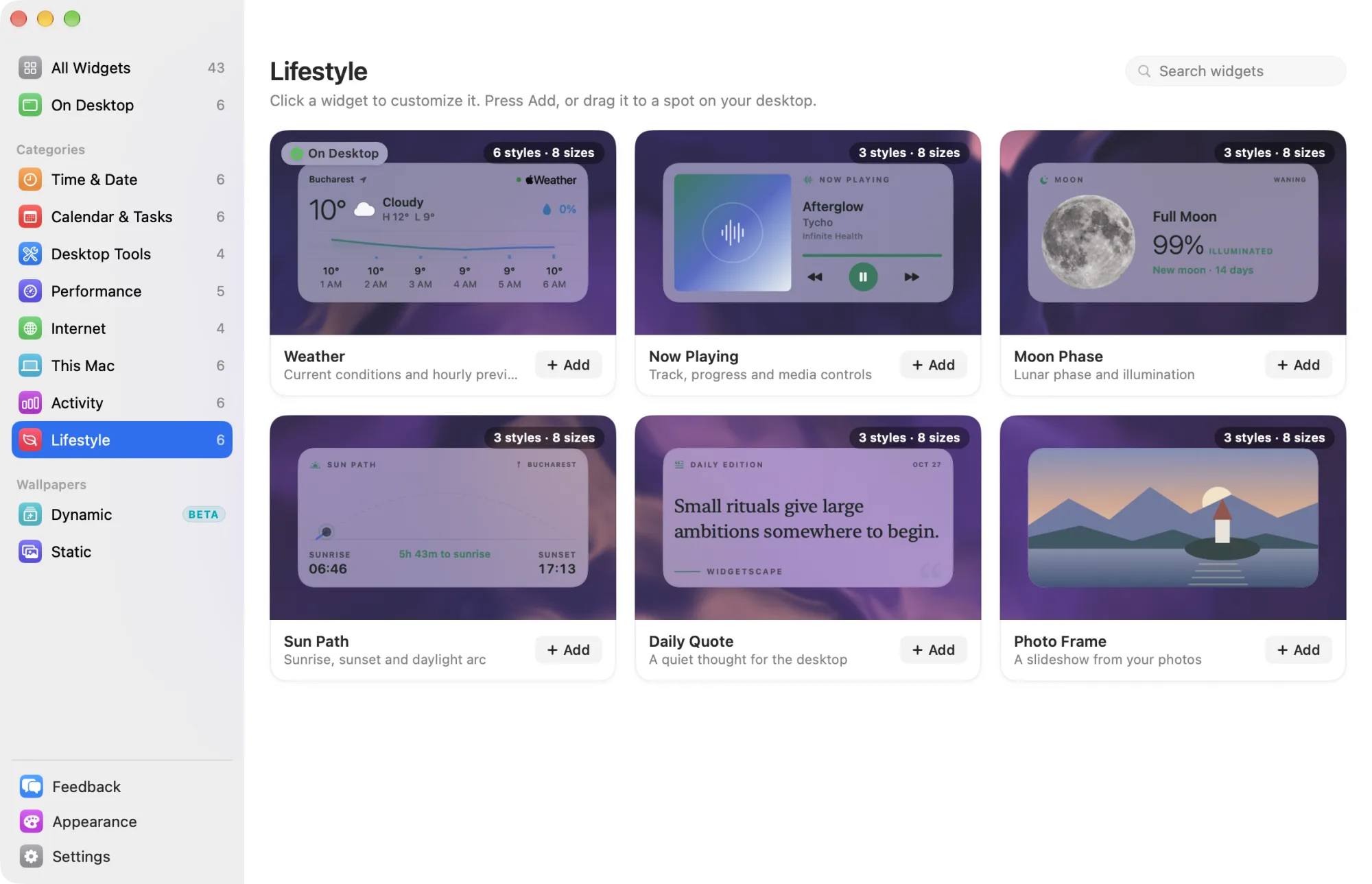
Widgets marked Free are among the 8 free widgets that keep working after the trial. The others need Widgetscape Pro. See Free widgets, trial and Pro. Each one comes in every size.
Weather
Current conditions and an hourly preview. Free
- Styles: Current, Hourly Curve (default), Daily Outlook, Precipitation, Wind and Sun & Air.
- Default size: Medium (2×1).
- Needs: the internet. Location Services only if you choose Automatic. See Calendars, email and location.
Set Location on the General tab. Choose Automatic to use your Mac’s location, or Choose a city and type at least two letters to search. A new Weather widget shows Bucharest until you choose.
| Setting | Tab | Choices |
|---|---|---|
| Hourly range | Content | 6 to 24 hours. The default is 12. |
| Daily range | Content | 3, 5 or 7 days. The default is 5. |
| Temperature | Content | Celsius or Fahrenheit. |
| Wind speed | Content | km/h or mph. |
| Feels like, Precipitation, Wind, Sunrise & sunset | Content | Show or hide each one. |
| Air quality | Content | Not available from Apple Weather, so the switch stays off. |
The forecast comes from Apple Weather. Only the place’s coordinates, rounded to about 1 km, and its time zone are sent. Widgetscape’s server never sees the place. Offline, the widget keeps its last forecast.
On the desktop, right-click the widget and choose Weather Data Sources for Apple’s data sources.
Now Playing
Track, progress and media controls. Pro
- Styles: Controls (default) shows the track, progress and playback buttons. Artwork puts the album art first. Equalizer adds live sound levels.
- Default size: Medium (2×1).
- Needs: Screen & System Audio Recording for Widgetscape Agent, for the Equalizer style only. It reads levels; no audio is recorded. See Permissions and privacy.
It shows what’s playing in Music, Spotify, a browser, or another player that reports to macOS. The Privacy tab also lists Automation for Music, Safari and Chrome. The widget uses it only when macOS can’t say what’s playing.
Settings, on the Content tab:
- Album, Progress and Source app: show or hide each one.
- On click: Open the Player (default), Choose Another App or Do Nothing.
On the desktop, use the previous, play/pause and next buttons. Click anywhere else on the widget to open the player.
Moon Phase
Lunar phase and illumination. Free
- Styles: Portrait (default) shows a photograph of the phase. Cycle shows the position in the lunar cycle. Almanac shows illumination and milestones.
- Default size: Medium (2×1).
- Needs: nothing. The phase is calculated on your Mac from the date.
- Settings: the style only. There is no Content tab.
- On the desktop: no click actions.
It names the phase, from New Moon to Waning Crescent, and whether the moon is waxing or waning.
Sun Path
Sunrise, sunset and the daylight arc. Pro
- Styles: Solar Arc (default) shows the sun’s position across the sky. Daylight shows the day length and its endpoints. Golden Hours shows the best natural-light windows.
- Default size: Medium (2×1).
- Needs: Location Services only if you choose Automatic. See Calendars, email and location.
- On the desktop: no click actions.
Set Location on the General tab, as for Weather: Automatic, or Choose a city. A new Sun Path widget shows Bucharest until you choose.
Sun times are calculated on your Mac. If a Weather widget already has a forecast for the same place, Sun Path uses its sunrise and sunset. Near the poles, it shows Midnight sun or Polar night.
Daily Quote
A quiet thought for the desktop. Pro
- Styles: Editorial (default) is a serif reading card. Quiet shows only the essential words. Poster is a bold typographic layout.
- Default size: Medium (2×1).
- Needs: nothing.
- On the desktop: no click actions.
The quote changes once a day. It comes from a small built-in set of original quotes.
Settings: Variation (General), 1 to 8, chooses which quote this widget shows today. Give two Daily Quote widgets different variations to show different quotes.
Photo Frame
A slideshow from your photos. Pro
- Styles: Full Bleed (default) fills the frame. Framed adds a matte and a soft shadow. Polaroid shows a stack of instant prints.
- Default size: Medium (2×1).
- Needs: Photos access, only for the Photos source. See Permissions and privacy.
Choose the Source on the General tab:
- Folder: your Pictures folder, or Choose Folder. The widget on your desktop can read folders inside Pictures, Documents, Downloads, Movies and Music.
- Photos: Favorites, Recents (the latest 500), On This Day or one Album.
| Setting | Tab | Choices |
|---|---|---|
| Change picture | Content | Every 1 min to every 1 day. The default is every 5 min. |
| Order | Content | Shuffle or Oldest first. |
| Transition | Content | Crossfade, Slow pan and zoom, or Shuffle the stack. |
| Keep subjects in frame | Content | Crops around faces and the main subject. |
| Include subfolders | Content | For the Folder source. |
| Caption | Content | None, Date, Place, or Date and place. |
Pictures never leave this Mac. With a place caption, only a picture’s coordinates go to Apple to look up the place name.
On the desktop, click for the next picture. Double-click to open the original in Preview or Photos.