
Help
Settings
Click Settings at the bottom of the sidebar, or choose Settings in the Widgetscape menu bar menu, to change how Widgetscape starts, updates and handles your data.
Settings has five tabs: General, License, Privacy & Permissions, Updates and About. How widgets look and where they go is set in Appearance instead. See Appearance.
General
Startup, the Dock and menu bar, and the agent that draws your widgets.
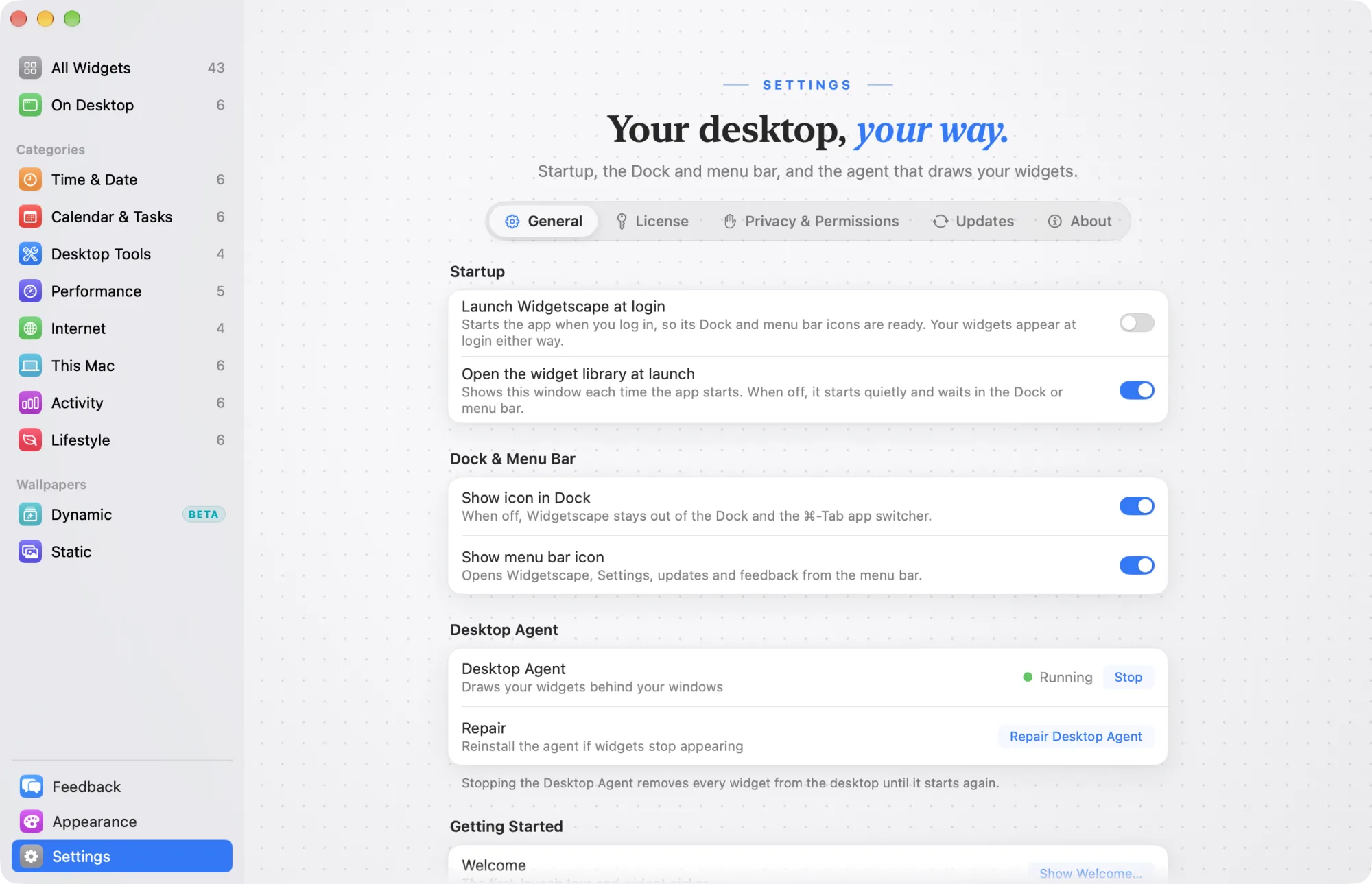
Startup
| Setting | What it does | Default |
|---|---|---|
| Launch Widgetscape at login | Starts the app when you log in, so its Dock and menu bar icons are ready. Your widgets appear at login either way. | Off |
| Open the widget library at launch | Shows the Widgetscape window each time the app starts. When off, it starts quietly and waits in the Dock or menu bar. | On |
Note: Launch Widgetscape at login works only when Widgetscape is in the Applications folder. If macOS refuses the change, the reason appears in orange under the setting.
Dock & Menu Bar
| Setting | What it does | Default |
|---|---|---|
| Show icon in Dock | When off, Widgetscape stays out of the Dock and the ⌘-Tab app switcher. | On |
| Show menu bar icon | Opens Widgetscape, Settings, updates and feedback from the menu bar. | On |
With both off, open Widgetscape from Applications or Spotlight.
Desktop Agent
The Desktop Agent draws your widgets behind your windows. It keeps running when you quit Widgetscape.
- Desktop Agent shows Running or Stopped. Click Stop to remove every widget from the desktop until you click Start again. Your widgets and their settings are kept.
- Repair: click Repair Desktop Agent if widgets stop appearing. It reinstalls the agent from this copy of Widgetscape.
Getting Started
- Welcome: click Show Welcome to see the first-launch tour and widget picker again. See Get started.
License
Shows your trial or Widgetscape Pro status, with Buy Widgetscape Pro, Enter License Key, Deactivate This Mac, Manage Macs and Check Now. Below the actions, What You Get and Free Forever list what Pro adds and which widgets stay free.
See Free widgets, trial and Pro.
Privacy & Permissions
What leaves your Mac, what each permission is for, and your choices.
| Setting | What it does | Default |
|---|---|---|
| Share anonymous usage data | Sends which widgets are used and how often, never what they show. | On |
| Send error and hang reports | Sends technical details of problems automatically. | On |
| Crash reports | Ask Each Time, Send Automatically or Never Send. | Ask Each Time |
| Usage data not sent yet | Show displays exactly what the next report contains. | — |
| Identifiers | Reset replaces the random identifiers and deletes usage data not yet sent. | — |
| Sent from this Mac | Export saves what the Widgetscape team holds from your Mac. Delete deletes it from the server and your Mac. | — |
| Tell me if access is turned off | Shows a notification when a widget on your desktop loses access. | On |
If Notifications are off appears under Tell me if access is turned off, click Open Settings and allow notifications for Widgetscape Agent.
The tab also lists everything the app sends, every permission with its status, and where each widget on your desktop sends its data. Open Visibility takes you to the settings for hiding widgets.
Updates
How Widgetscape updates, and what changed in each version.
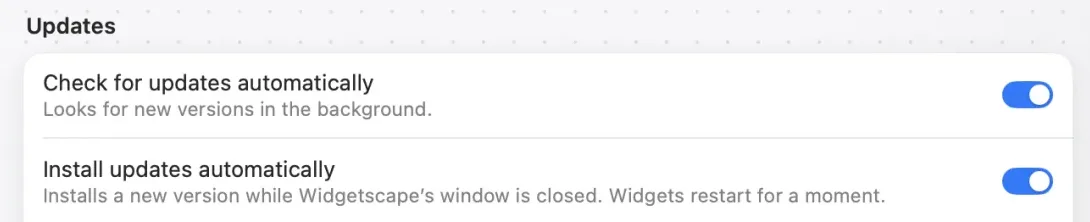
| Setting | What it does | Default |
|---|---|---|
| Check for updates automatically | Looks for new versions in the background. | On |
| Install updates automatically | Installs a new version while the Widgetscape window is closed. Widgets restart for a moment. Available only while automatic checks are on. | On |
Note: Self-update works only when Widgetscape is in the Applications folder. Elsewhere, the tab says “Install Widgetscape in Applications to enable self-update.” and Check Now is dimmed. Move Widgetscape to the Applications folder and open it from there.
- Version: shows the version you have. Click Check Now to look for a new one. The line below shows what’s happening, such as Widgetscape is up to date.
- When an update is downloaded, click Install and Relaunch.
- What’s New: click Show for the highlights of this version.
- Release History lists the changes in each version. Installed marks the version you have.
See Updates.
About
The app’s version and build, and links to Help (this guide), the Website, Support (an email to support@vpolabs.com), the Privacy Policy, the Terms and Send Feedback.