
Basics
The Widgetscape window
The Widgetscape window is where you find widgets, change them and set up the app. Your widgets stay on the desktop when it’s closed.
Open the window
- Click Widgetscape in the Dock, or open it from Applications or Spotlight.
- Click the Widgetscape icon in the menu bar, then choose Open Widgetscape (⌘O).
- Right-click a widget on the desktop, then choose Open Widgetscape. Choose Customize to open that widget’s settings.
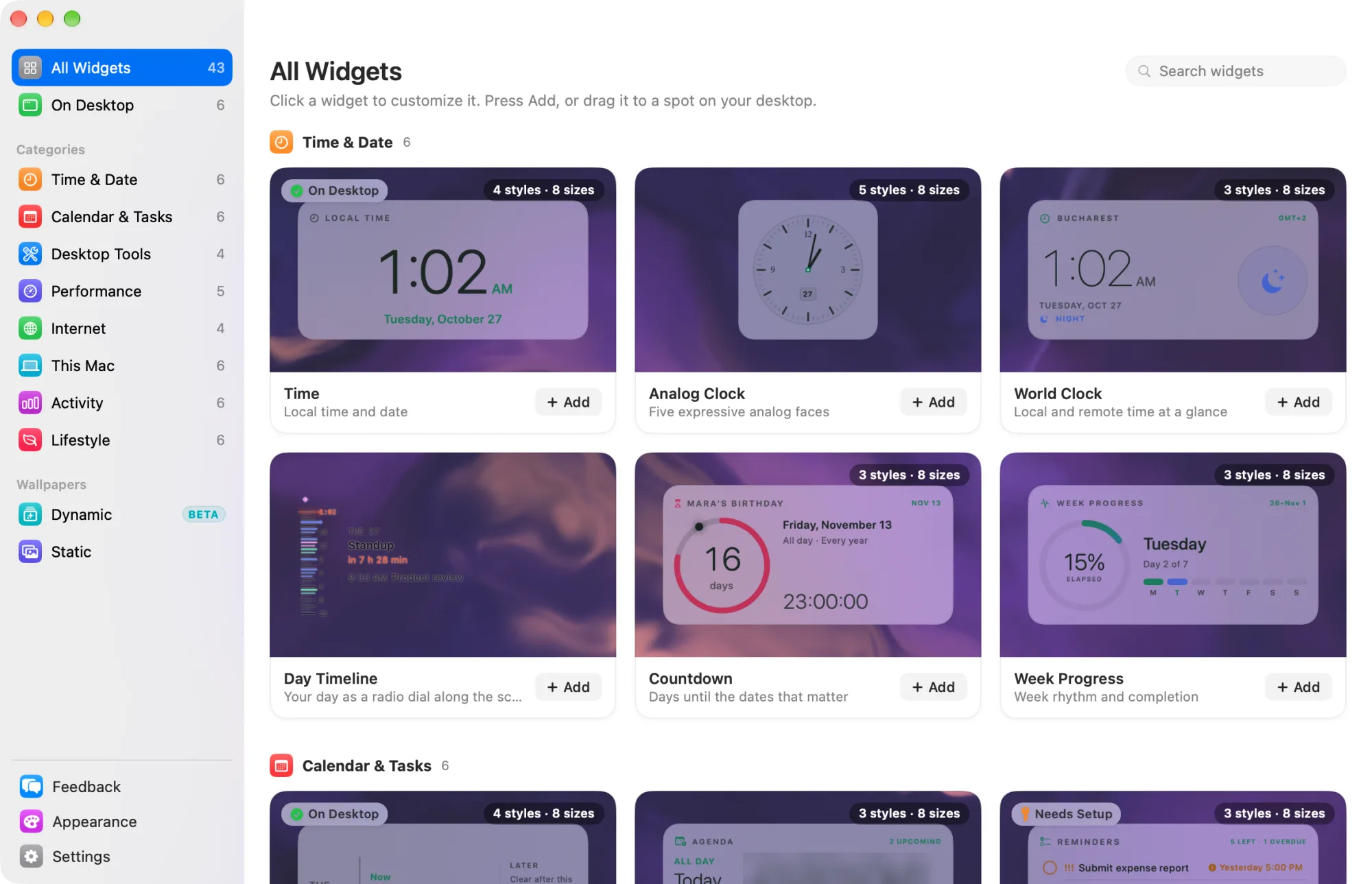
The sidebar
| Item | Shows |
|---|---|
| All Widgets | Every widget, grouped by category |
| On Desktop | The widgets on your desktop now |
| Categories | Widgets of one kind: Time & Date, Calendar & Tasks, Desktop Tools, Performance, Internet, This Mac, Activity and Lifestyle |
| Wallpapers | Dynamic and Static wallpapers. See Wallpapers. |
| Feedback | Messages to the Widgetscape team. See Feedback and support. |
| Appearance | The look of every widget. See Appearance. |
| Settings | Startup, license, privacy and updates. See Settings. |
The number next to each widget row counts its widgets. A number on Feedback counts new replies. Dynamic is marked Beta.
An orange key with a number on On Desktop means that many widgets need setup: a permission, such as Calendar or Location, or an account. Open On Desktop and click the widget marked with the key to allow access or connect.
Until you unlock Pro, a card above Feedback shows your trial: the days left, or what stays free once it has ended. It has Buy Pro with the price, and Enter License Key. Click the card to open Settings › License. If your license can’t be checked, the card says License inactive. See Free widgets, trial and Pro.
To go back from a widget’s page to its list, click the selected sidebar row again.
Search
Press ⌘F, or click the search field at the top of the pane, then type.
- In the library, Search widgets searches the whole library, by name, description, category or a widget’s location.
- In Dynamic and Static, Search wallpapers finds wallpapers.
The results appear under “Results for” and what you typed. If nothing matches, click Show All Widgets. Appearance, Feedback and Settings have no search.
The widget library
All Widgets, On Desktop and each category show widgets as cards. Each card has a live preview, the widget’s name, a short description and an Add button.
- Click a card to open the widget’s settings. See Change a widget.
- Click Add to put the widget on your desktop, or drag the card to a spot on the desktop. See Add, move and remove widgets.
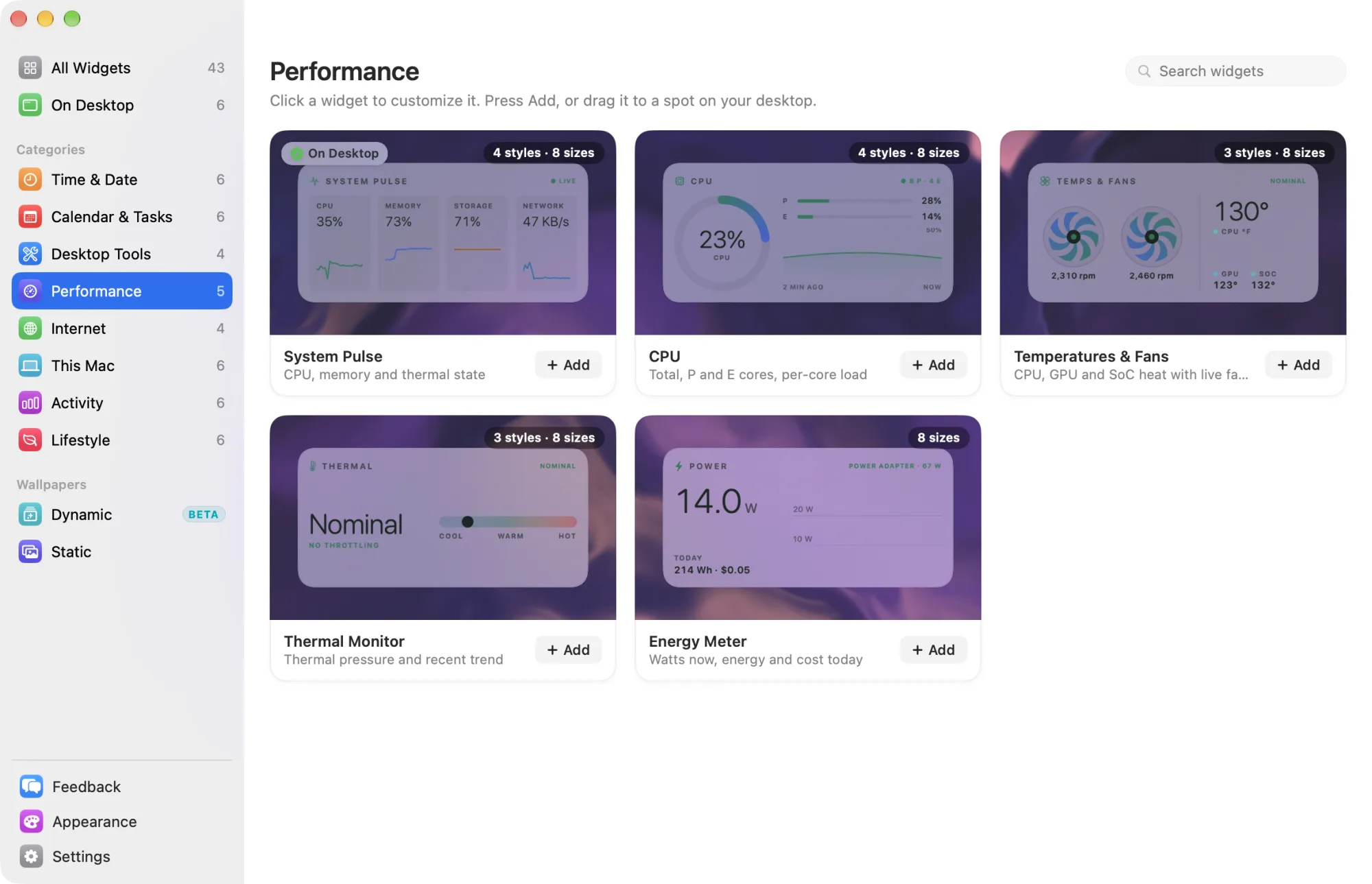
All Widgets shows one card for each widget. On Desktop shows each widget on your desktop, so two copies of a widget show as two cards, and a stack shows as one card. If your desktop is empty, it says “Nothing on your desktop yet”.
Labels on a card
| Label | Means |
|---|---|
| On Desktop | The widget is on your desktop. |
| A number with a stack symbol | A stack of that many widgets. See Stacks. |
| PRO | A Pro widget, and the trial has ended. |
| Needs Setup | The widget needs a permission or an account. |
| Access Off | A permission the widget needs is turned off. |
| Hidden here, Hidden everywhere or Waiting for display | The widget doesn’t show with the displays connected now. See Displays and the Lock Screen. |
Hold the pointer over Needs Setup, Access Off or a Hidden label to see what to do.
The card’s menu
Right-click a card to see:
- Customize: opens the widget’s settings.
- Size: changes the widget’s size.
- Add to Desktop or Add Another to Desktop.
- Place on Desktop or Place Another on Desktop: you choose the spot.
- Remove from Desktop, or Remove Stack from Desktop for a stack.
- Show in This Setup, for a widget hidden with the displays connected now.
Some widgets add their own items, such as Day Timeline’s Thickness.
Use the keyboard
Click in the grid, then:
- Press the arrow keys, Home or End to move between cards.
- Press Return or Space to open the selected widget’s settings.
- Press ⌘Return or + to add it to your desktop.
Messages at the top of the window
- Widgetscape was updated: an update has been installed.
- Your Widgetscape trial ends in 3 days and Your Widgetscape trial has ended: with Buy Pro, and Enter License once the trial has ended. Close a reminder and it doesn’t come back.
- Desktop Agent isn’t running: your changes can’t reach the desktop. Click Start, or Repair if it doesn’t start. See Troubleshooting.
- Widgets stopped after repeated crashes: click Review to send the crash report, then Start.
If the agent never answers, the window shows Desktop Agent Isn’t Running or Desktop Agent Needs Repair in place of the library, with a button to start or repair it.
The menu bar menu
Click the Widgetscape icon in the menu bar. While your widgets are hidden, the icon changes to an eye with a line through it.
| Item | Does |
|---|---|
| Hide Widgets or Show Widgets (⌃⌥⌘H) | Hides or shows every widget |
| Presentation Mode | Turns Presentation Mode on or off |
| Show Widgets While Sharing | Shows your widgets again while you share your screen; appears only while sharing hides them |
| Open Widgetscape (⌘O) | Opens the window on All Widgets |
| Settings (⌘,) | Opens Settings |
| Check for Updates | Looks for a new version now |
| What’s New | Shows what’s new in this version |
| Help | Opens Widgetscape Help, this guide |
| Feedback | Opens Feedback; shows the number of new replies |
| Quit Widgetscape (⌘Q) | Quits the app; your widgets stay on the desktop |
While widgets are hidden, the top of the menu says why, such as Widgets Hidden or Presentation Mode On. See Hide widgets and Presentation Mode.
To remove the icon, turn off Show menu bar icon in Settings › General. If you also turn off Show icon in Dock, open Widgetscape from Applications or Spotlight.
The Help menu
The Help menu in the menu bar has:
- Widgetscape Help (⌘?): opens this guide in its own window. Search it from the sidebar.
- What’s New in Widgetscape
- Feedback
- Privacy & Permissions: opens Settings › Privacy & Permissions.
- Widgetscape Website and Privacy Policy: open in your browser.
Close the window
When you close the Widgetscape window, the app quits, and the menu bar icon goes away with it. Your widgets stay on the desktop, because the Desktop Agent draws them, and ⌃⌥⌘H keeps working. They also appear at login, whether or not the app opens.
To open the window again, open Widgetscape from Applications, Spotlight or the Dock.
To take every widget off the desktop, stop the Desktop Agent in Settings › General. See Settings.