
Basics
Change a widget
Click a widget in the library to open its settings page. Changes show on your desktop right away.
Open a widget’s settings
- In the Widgetscape window, click the widget’s card.
- Right-click the widget on the desktop, then choose Customize (⌘,). Its page opens under On Desktop.
- Right-click the card, then choose Customize.
- With a card selected, press Return or Space.
To go back to the list, click the first part of the title, such as All Widgets, or press Esc or ⌘[. Clicking the selected sidebar row again also goes back.
The settings page
The page shows, from top to bottom:
- The title, such as All Widgets › Time, and a short description. On your desktop shows when the widget is on your desktop.
- A live preview of the widget.
- Its current style and size, such as “Modern, Medium (2 × 1)”, and how many it has, such as “4 styles · 8 sizes”.
- Place on Desktop and Add to Desktop, or Remove from Desktop when it’s on your desktop. See Add, move and remove widgets.
- The tabs, and the settings of the tab you choose.
Every change goes straight to the widget on your desktop. There’s nothing to save.
If the widget needs a permission or an account, a note at the top of General says so, such as “Needs Calendar access”, with the button to fix it.
The tabs
A tab appears only when the widget has something in it.
| Tab | Holds |
|---|---|
| Styles & Sizes | Every style and size the widget has |
| Stack | The widgets in a stack, and rotation; only on a stack |
| General | The main setting and the accent colors |
| Content | What the widget shows, and what a click does |
| Layout | Header, font, displays, Spaces, Lock Screen and moving |
| Privacy | What the widget reads, where it goes and its access |
The page opens on Styles & Sizes, or on Stack for a stack, or on General for a widget with one style and one size.
What each widget has in General and Content is on its category page in Widgets.
Styles & Sizes
A style is a different look for the same widget. Analog Clock, for example, has Atelier, Orbit, Railway, Midnight and Minimal.
- Click a style to use it.
- Click a size to use it. Each size is drawn for real, so you can see what it shows.
- Click Compare All Styles (⌘B) to see every style in every size side by side. Click one, then click Apply, or double-click it. Fit and Actual Size change the zoom. Click Cancel to go back.
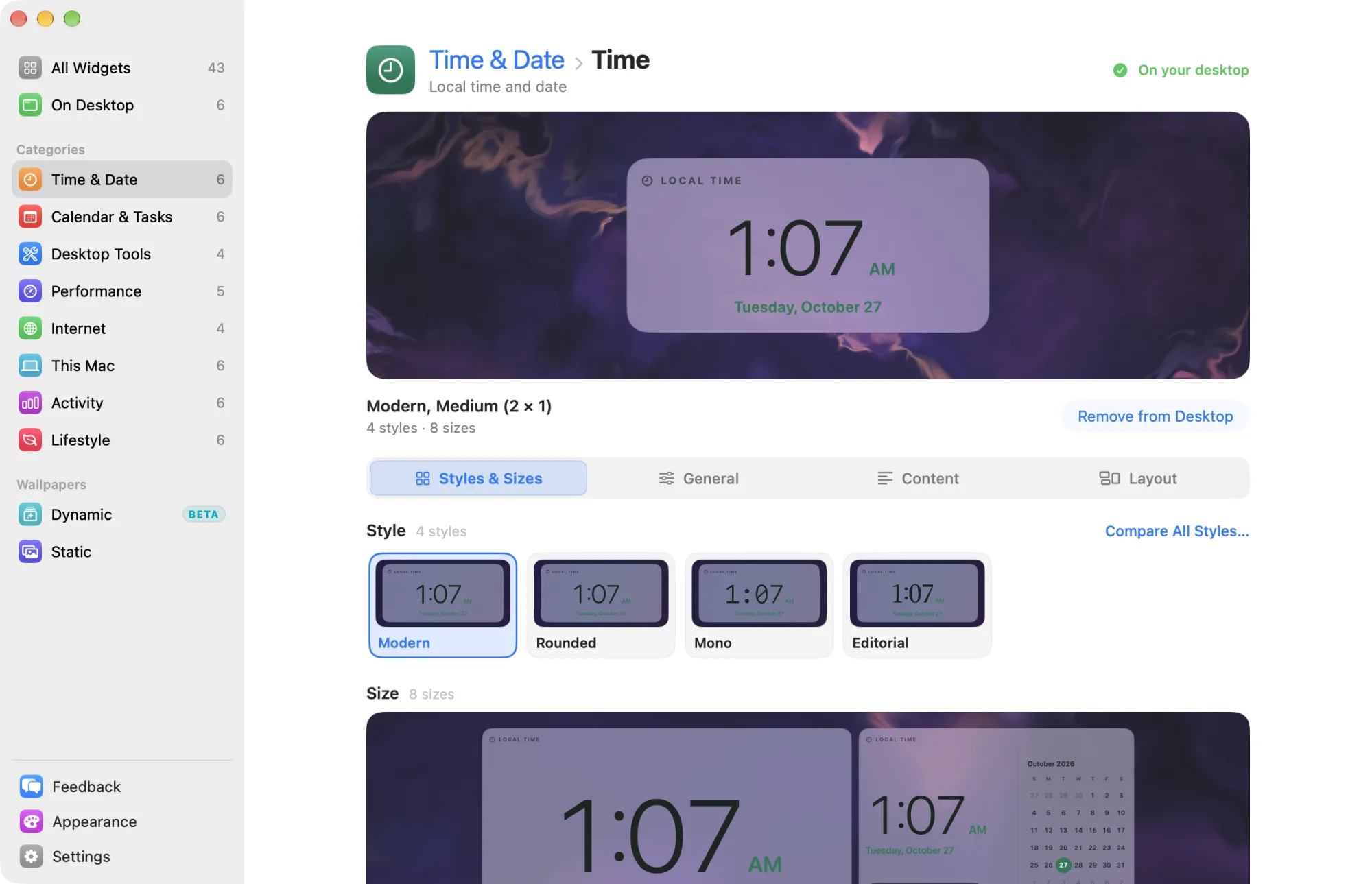
You can also change the style and size from the widget’s menu on the desktop: right-click it, then choose Style or Size.
Stack
A stack holds several widgets in one place. The Stack tab lists them and sets how often the stack turns its pages. See Stacks.
General
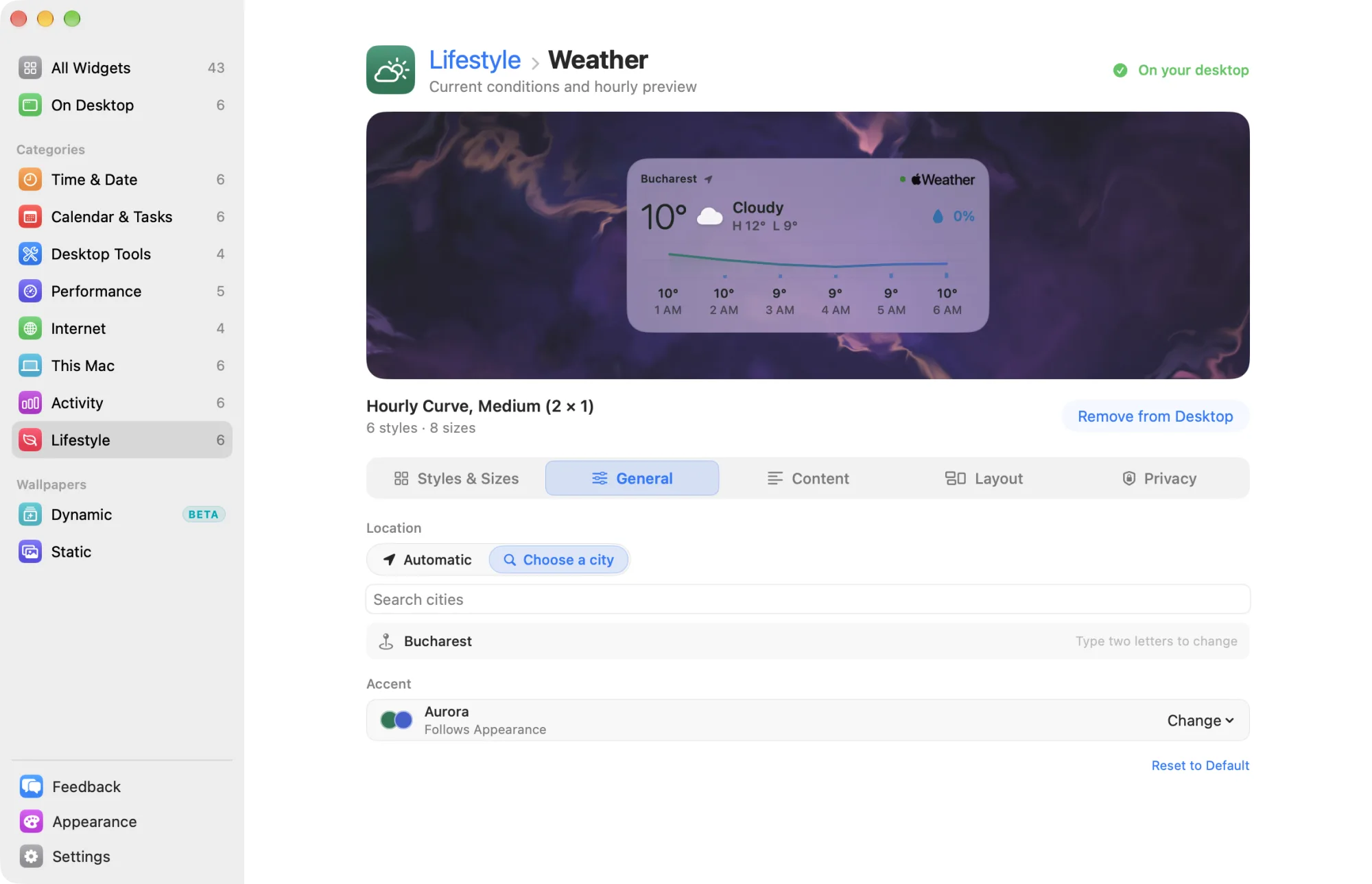
General holds the setting that matters most for the widget, such as 24-hour time for Time or Location for World Clock, and Accent.
Accent shows the colors the widget uses. By default it says Follows Appearance: the widget uses the palette you chose in Appearance. Click Change, then Open Appearance to change the palette for every widget. See Appearance.
A widget that reads nothing from your Mac says “Uses no data from your Mac.”
After the trial, a Pro widget shows a note here. Its settings are kept and can still be changed. See Free widgets, trial and Pro.
Content
Content holds the widget’s other settings: more of what it shows and how.
For Calendar, Agenda, Day Timeline, Reminders, Email and Now Playing, On click chooses what a click on the widget opens.
Layout
Layout works the same for every widget:
- Header: Show title and Show status.
- Text: the font for this widget.
- Displays: which display the widget shows on, and what happens when a display disconnects.
- Spaces: the Spaces it shows on, and Show in full-screen apps.
- Lock Screen & Privacy: Show on Lock Screen, and Hide in Presentation mode.
- Moving: Smart alignment, which snaps to edges and centers.
Rows without a dot follow the defaults in Appearance. A row you change shows a dot; click Use Default to make it follow the default again. Change Defaults opens Appearance › Placement, where you set the defaults for every widget.
On a widget inside a stack, the stack decides where it shows. Click Show Stack to change that for the whole stack.
See Displays and the Lock Screen and Hide widgets and Presentation Mode.
Privacy
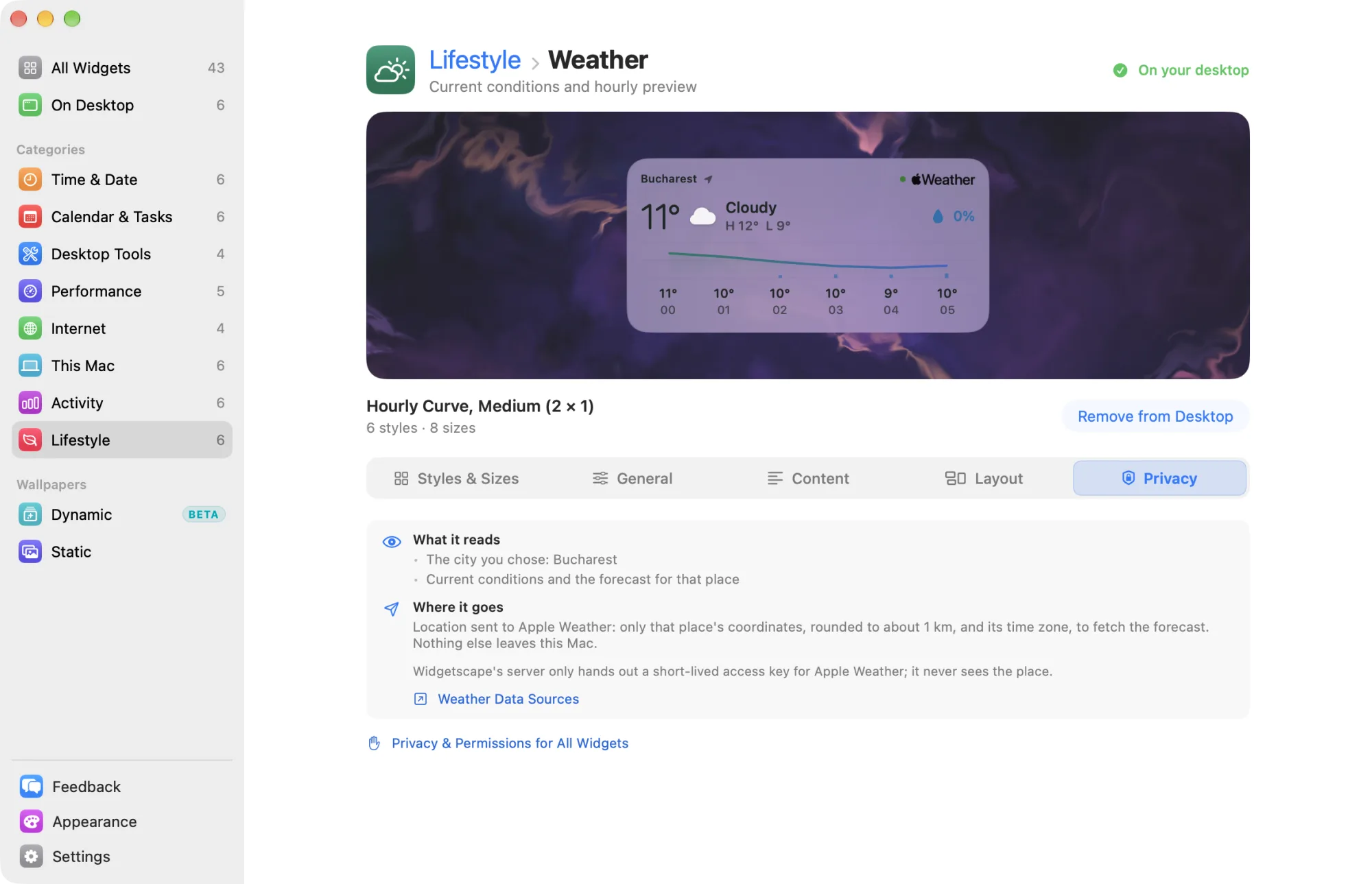
Privacy says what the widget reads and where it goes, such as “Stays on this Mac”. Under Access, it lists each permission or account the widget uses, with a button to allow, connect or manage it.
Calendar and Email widgets can hide details on the desktop. Under On the desktop, choose Busy only for a calendar to hide titles and locations, or Senders only for email to hide subjects and previews. Full details shows everything.
Click Privacy & Permissions for All Widgets to see every permission in one place. See Permissions and privacy.
Reset a widget
General, Content and Layout end with Reset to Default, and so does Privacy for widgets with privacy settings. It puts back that tab’s default settings.
- On General, it also puts back the widget’s default style and size. Widgets in a stack keep their size.
- A reset never removes your own data, such as a location you chose or a habit’s history.
Styles & Sizes and Stack have no reset.