
Help
Updates
Widgetscape updates itself. To check now, choose Check for Updates in the menu bar menu, or click Check Now in Settings › Updates.
Updates come from widgetscape.vpolabs.com and are signed, so only genuine Widgetscape updates install.
Important: Widgetscape updates itself only from the Applications folder. Elsewhere, Settings › Updates says “Install Widgetscape in Applications to enable self-update.”, and Check Now and Check for Updates are dimmed. Quit Widgetscape, move it to the Applications folder and open it from there.
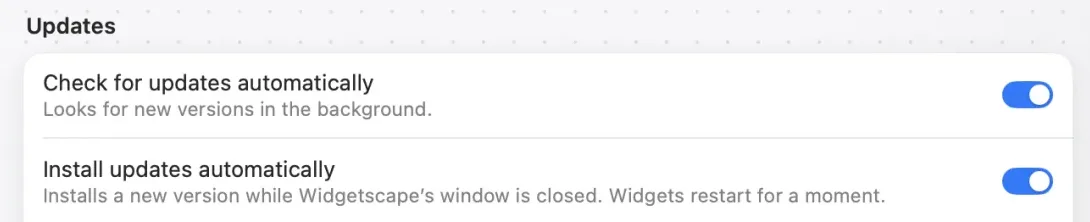
Automatic updates
Both settings are in Settings › Updates and are on by default.
- Check for updates automatically looks for new versions in the background, about once an hour.
- Install updates automatically downloads a new version and installs it while the Widgetscape window is closed, or when you quit Widgetscape. Your widgets restart for a moment and come back where they were.
After an update, a banner in the Widgetscape window says Widgetscape was updated, and What’s New opens once.
To install updates yourself, turn off Install updates automatically. Widgetscape then asks before it installs anything.
Note: With Check for updates automatically off, Widgetscape still reads the list of new versions about once an hour, with only the app’s version. It doesn’t offer or install an update until you choose Check for Updates.
Check for updates now
- Click the Widgetscape icon in the menu bar and choose Check for Updates. Or choose Settings › Updates and click Check Now.
- If a new version is available, the Software Update window opens.
If you have the newest version, you see You’re up to date.
The Software Update window
The window shows the new version, its release notes and what to do next.
- Install Update downloads and prepares the new version.
- Install and Relaunch quits Widgetscape, installs the update and opens it again. Your widgets come back where they were.
- Remind Me Later or Later closes the window. Widgetscape offers the update again later.
- Skip This Version stops offering this version. You still get the next one.
- Learn More appears for an update you get from the website. It opens the release page.
If an update is already installed, click Relaunch Now to start using it.
While installing, the window may say Waiting for Widgetscape to quit. If it stays there, click Try Again.
If the download fails, you see Widgetscape couldn’t update. Check your internet connection and try again. See Troubleshooting.
What’s New
What’s New shows the highlights of a version. It opens once after an update, never on a first install. Some highlights have a Try It button that takes you to the feature. Click Continue to close it.
To open it again:
- Choose What’s New in the menu bar menu.
- Choose Help › What’s New in Widgetscape.
- Choose Settings › Updates, then click Show next to What’s New.
Settings › Updates › Release History lists the changes in every version.
If your version is no longer supported
Rarely, a version is retired. Widgetscape then shows Please update Widgetscape with an Update button. Click it to install the newest version.