
Your desktop
Stacks
A stack keeps several widgets in one place on your desktop and shows one at a time. Drag a widget onto another to stack them.
What a stack is
Each widget in a stack is a page. Page dots along the bottom show how many there are and which one you see.
- A stack holds up to eight widgets.
- Every widget in a stack has the same size. When you change the size of a stack, all its widgets change with it.
- A widget can join a stack only if it comes in the stack’s size.
- A widget can be in one stack only, and a stack can’t go inside another stack.
- A Day Timeline docked to a screen edge can’t join a stack. A floating Day Timeline can.
Widgets in a stack keep their own settings and stay up to date while you look at another page.
Create a stack
You can drag one widget onto another, or use the widget’s menu.
To drag:
- Right-click a widget on your desktop and choose Move Widgets. (While the Widgetscape window is open, you can drag widgets without this step.)
- Drag a widget over the middle of another widget and hold it there.
- When the other widget glows and shows Stack, let go.
To use the menu:
- Right-click a widget on your desktop.
- Choose Stack With, then the widget to stack it with.
Stack With lists the widgets on the same display that the widget can join.
Turn the pages
- Swipe sideways with two fingers on a trackpad.
- Click a page dot.
- Press and drag sideways with the mouse.
The stack remembers the page you turned to.
Note: While the Widgetscape window is open, or during Move Widgets, dragging moves the whole stack instead of turning the page.
Rotate pages automatically
A stack can turn to its next page by itself.
- Right-click the stack and choose Rotate.
- Choose Every 10 Seconds, Every 30 Seconds, Every Minute or Every 5 Minutes. Choose Off to stop.
For another interval, choose Custom. The stack’s settings page opens, where you can enter any interval from 5 seconds to 24 hours.
Rotation pauses while the pointer is over the stack.
The Stack tab
A stack has its own settings page with a Stack tab. To open it, right-click the stack and choose Edit Stack, or click the stack in On Desktop.
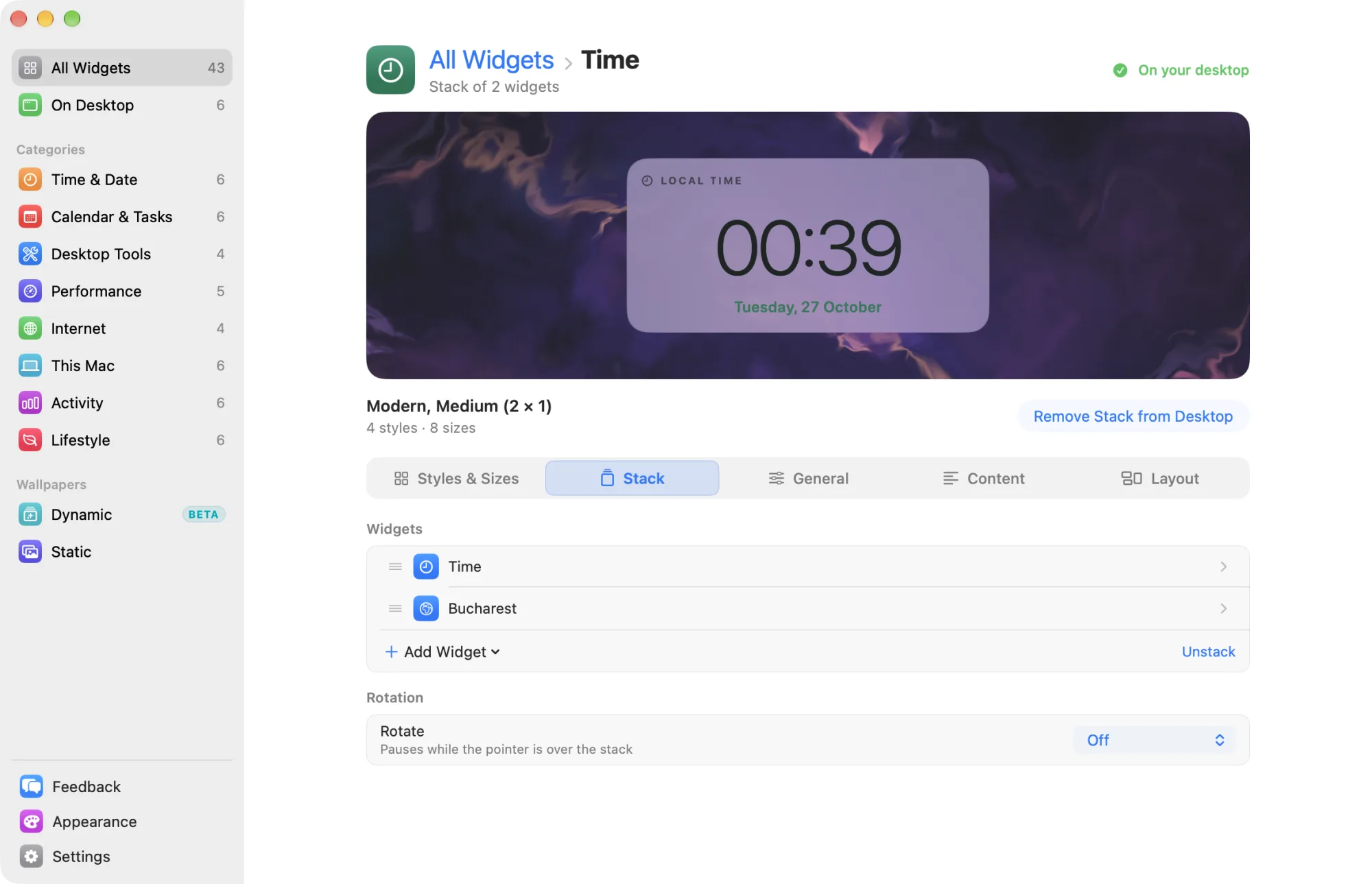
- Widgets lists the stack’s widgets in page order. Drag a row to change the order, or right-click it and choose Move Up or Move Down. Click a row to open that widget’s own settings.
- Add Widget adds a widget to the stack. Choose one that is already On Desktop, or one that is Not on Desktop.
- Unstack puts each widget back on the desktop on its own.
- Rotation › Rotate sets how often the stack turns its pages. Choose Custom in the picker to enter your own interval in seconds, minutes or hours.
Displays, Spaces, the Lock Screen and moving are set for the whole stack. On the settings page of a widget inside a stack, the Layout tab shows Set for the whole stack with a Show Stack button that takes you to the stack. Each widget still keeps its own header, font and Hide in Presentation mode choice.
Remove a widget from a stack
Do one of the following:
- Right-click the stack while the widget is showing, then choose Remove “widget” from Stack.
- In the Stack tab, right-click the widget and choose Remove from Stack.
- On the widget’s own settings page, click Remove from Stack.
The widget stays on your desktop, next to the stack. A stack left with one widget ends.
Remove a whole stack
Right-click the stack and choose Remove Stack from Desktop (⌘⌫). Every widget in it leaves your desktop. Each one keeps its settings in the library, so you can add it again later.