
Your desktop
Appearance
Appearance sets the look and behavior of every widget at once. Click Appearance in the sidebar of the Widgetscape window.
Appearance has three tabs: Style, Placement and Visibility. Changes reach your desktop right away. Each tab has a Reset to Default button that resets that tab only.
A single widget can differ from Appearance. Its font and header are set in its Layout tab, and so are its displays, Spaces and Lock Screen. See Change a widget.
Style
Appearance › Style sets colors, material, type and shape for every widget. A live preview at the top shows a clock, weather and a calendar in your current style.
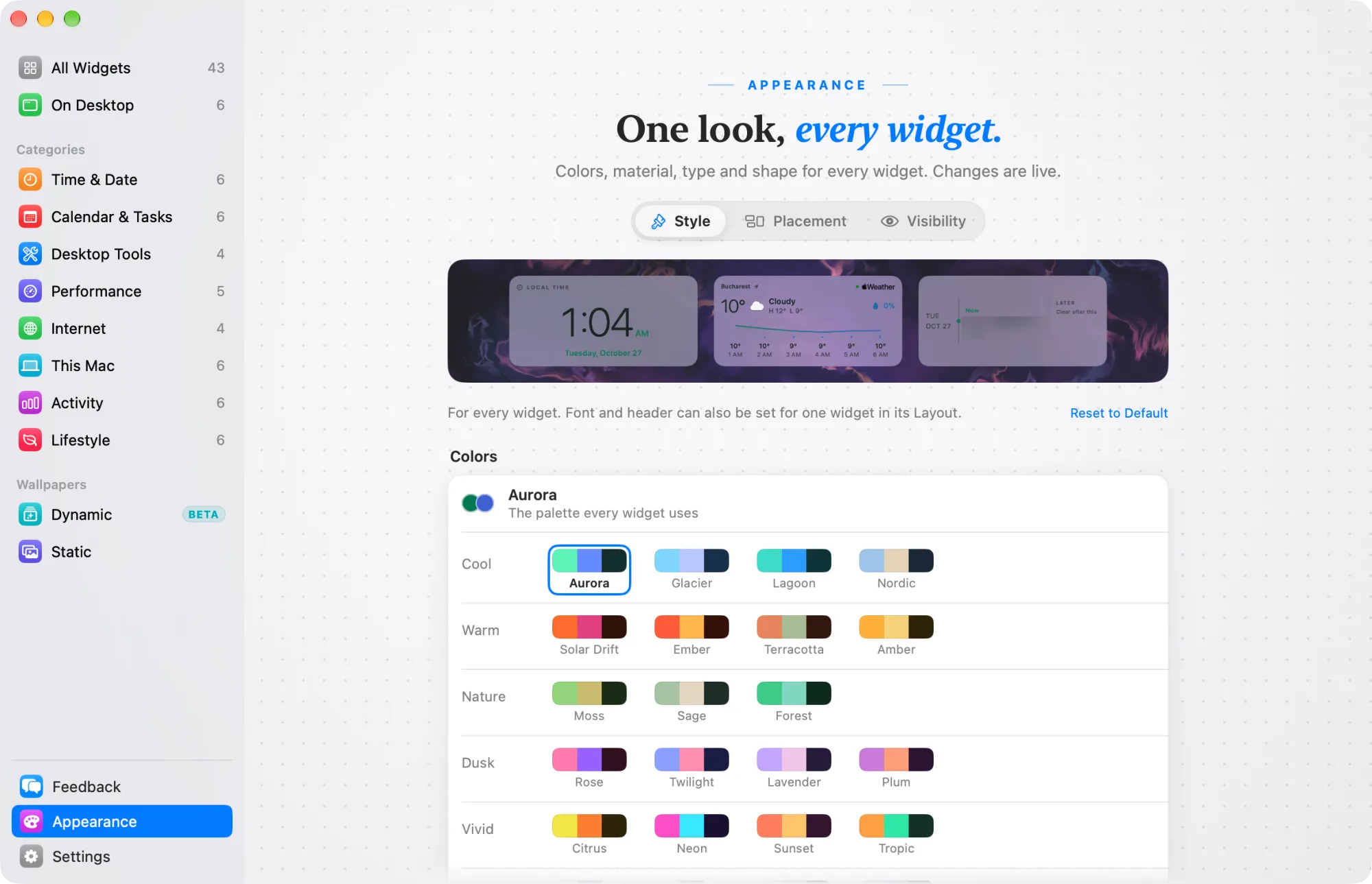
Colors
Pick the palette every widget uses. There are 23 built-in palettes, grouped as Cool, Warm, Nature, Dusk, Vivid and Neutral. The default is Aurora.
To make your own palette:
- Click Custom at the end of the palette grid.
- Enter a Name, then pick an Accent, a Companion and a Surface color. The Preview shows the result.
- Click Save.
Your palettes appear in the Yours row. To change one, select it and click Edit, or Control-click it and choose Edit.
Mode
- System follows your Mac’s Light or Dark appearance. This is the default.
- Light keeps widgets light, whatever your Mac uses.
- Dark keeps widgets dark, whatever your Mac uses.
A Day Timeline strip docked to a screen edge follows your wallpaper instead, so it stays readable.
Material
- Glass, Solid, Outline or Transparent. The default is Glass.
- Opacity fades the whole widget, from 55% to 100%. The default is 92%.
Solid widgets keep their palette’s dark surface in every mode.
Text
- Font: System keeps each widget’s own type, as designed. Rounded, Serif (New York) and Monospaced (SF Mono) use that type in every widget. The default is System.
- Density: Compact fits more on a small screen. Comfortable is the default.
Shape
Corner radius sets how round the widget corners are, from 0 to 40 pt. The default is 18 pt.
Header
- Show title shows the widget’s name in its header. On by default.
- Show status shows the live state or count on the right of the header. On by default.
- Show title without a header adds the title to styles that have no header row, such as dials and artwork. Off by default. It works only while Show title is on.
Placement
Appearance › Placement sets where widgets go, for every widget you haven’t changed in its own Layout tab.
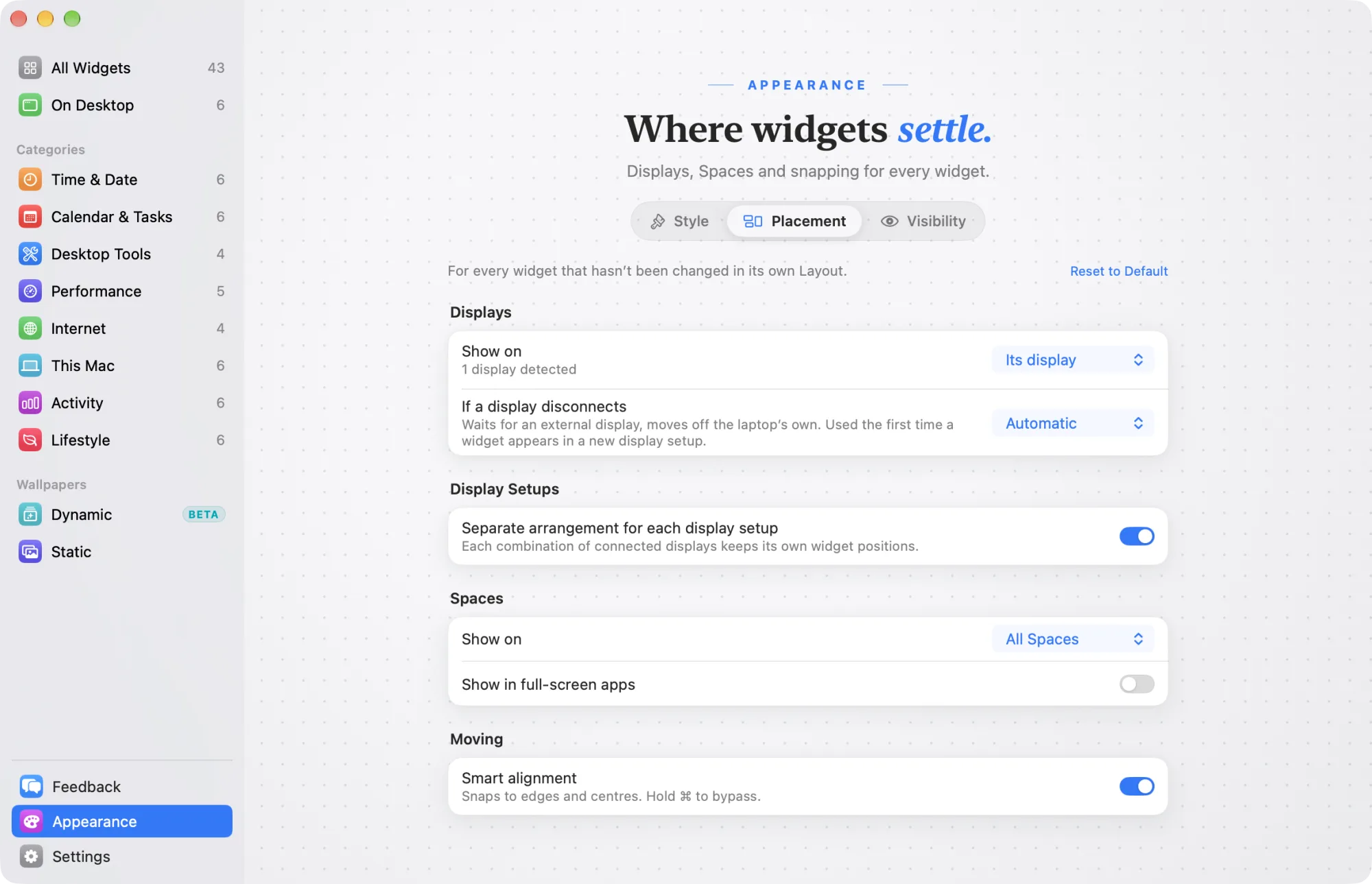
Displays
- Show on chooses the display: Its display (the one you put the widget on), Main display, Chosen display or All displays. The default is Its display.
- Display appears when you choose Chosen display. Pick one of your connected displays.
- If a display disconnects sets what happens to widgets on a display that goes away:
- Automatic (default) waits for an external display to come back, and moves widgets off a laptop’s own display when you close the lid.
- Move to main keeps the widget on your main display.
- Wait for it keeps the widget’s place and shows it when the display returns.
- Nearest display moves the widget to the closest connected display.
This choice is used the first time a widget appears in a new display setup.
Display Setups
Separate arrangement for each display setup is on by default. Each combination of connected displays keeps its own widget positions. Once you have used two or more setups, each one is listed here so you can rename or forget it. See Displays and the Lock Screen.
Spaces
- Show on chooses the Spaces widgets show on: Current Space, All Spaces or Follow active Space. The default is All Spaces.
- Show in full-screen apps shows widgets over apps in Full Screen. Off by default.
Moving
Smart alignment snaps widgets to edges and centers while you move them. Hold ⌘ to place a widget freely. On by default.
Visibility
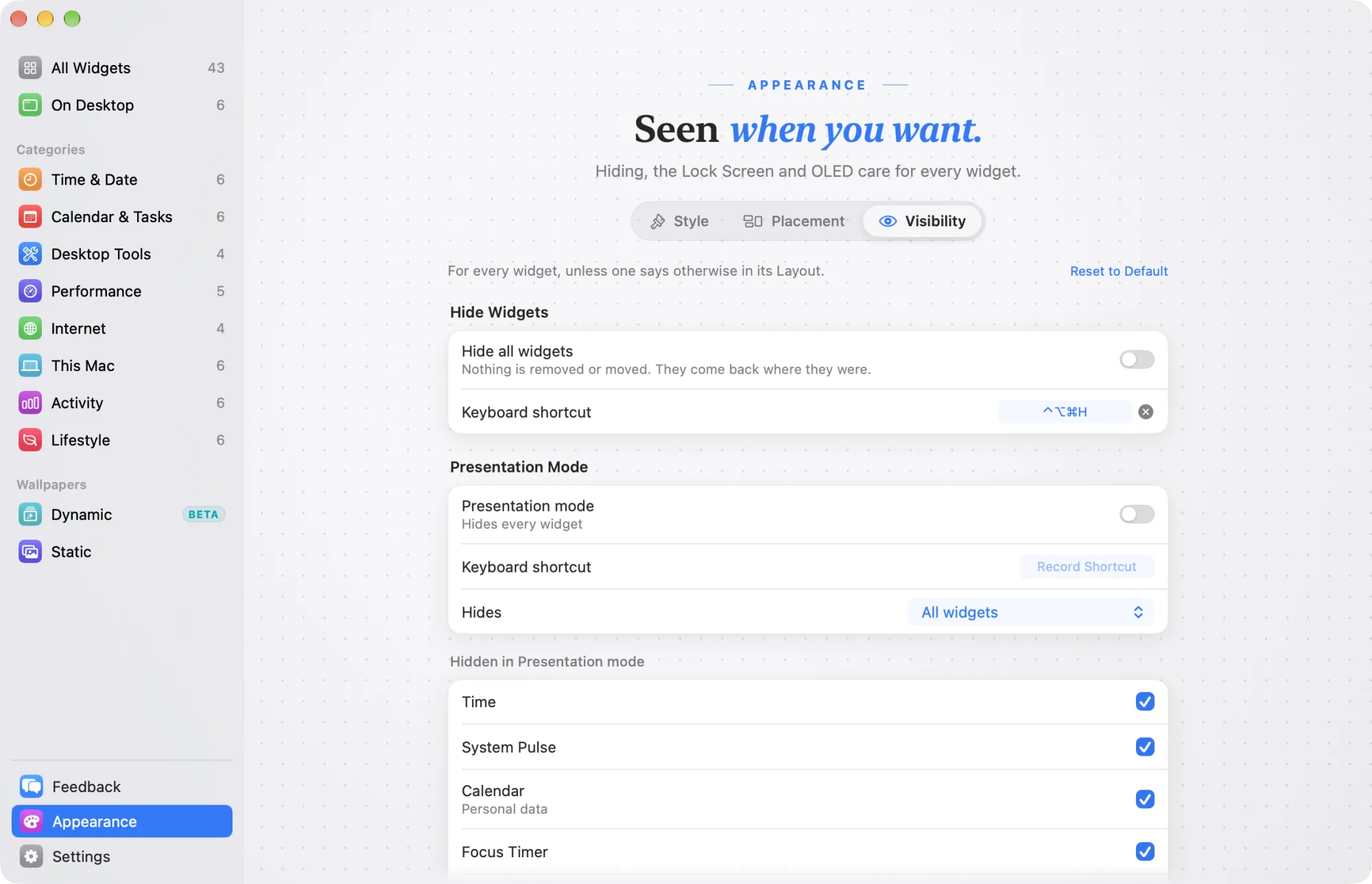
Appearance › Visibility sets when widgets hide or dim, for every widget unless one says otherwise in its Layout tab.
If the Desktop Agent isn’t running, these settings are dimmed. Start it in Settings › General.
Hide Widgets
- Hide all widgets hides every widget. Nothing is removed or moved: they come back where they were. Off by default.
- Keyboard shortcut is ⌃⌥⌘H by default. Click it to record another.
Presentation Mode
- Presentation mode hides the widgets you choose. Off by default.
- Keyboard shortcut has no shortcut by default. Click Record Shortcut to add one.
- Hides chooses which widgets Presentation Mode hides: All widgets (default), Widgets with personal data or No widgets.
- Hidden in Presentation mode lists every widget on your desktop with a checkbox. Select or deselect a widget to make an exception. Use Default for All clears your exceptions.
Screen Sharing
When your screen is shared or recorded sets what happens while you share or record your screen: Do nothing, Hide the same widgets as Presentation mode (default) or Hide all widgets.
While Widgetscape watches for sharing, a row shows Not sharing now, or Sharing detected and its source, with Show Anyway. See Screen sharing and recording.
Lock Screen
- Widgets on the Lock Screen shows how many widgets you show there. Click Arrange to place them. This row appears once at least one widget shows on the Lock Screen.
- Dim on the Lock Screen fades Lock Screen widgets softly after a minute. They stay visible. On by default.
- Dim to sets how far they fade: 80%, 60% (default) or 40%.
To show a widget on the Lock Screen, turn on Show on Lock Screen in that widget’s Layout tab.
Burn-in Protection
Shift widgets slightly over time moves every widget by a few pixels every few minutes. It helps protect OLED displays, and you won’t notice it. On by default.
For more on hiding, see Hide widgets and Presentation Mode.