
Account & privacy
Calendars, email and location
Open a widget’s Privacy tab and click Allow or Connect to give it your calendars, your mail or your location.
Widgetscape has no account of its own. Calendars, mail and location come from your Mac or straight from your provider, and what a widget shows never passes through a VPO Labs server.
Calendars
Calendar, Agenda and Day Timeline show the calendars in the Calendar app on your Mac. That includes every account you added to macOS, such as iCloud, Google or Exchange.
Allow Calendar access
- Click the widget in the Widgetscape window to open its settings page.
- Click the Privacy tab.
- Next to Calendars, click Allow.
- In the macOS prompt, allow access.
When you add Calendar, Agenda or Day Timeline, Widgetscape shows what the widget reads before it goes on your desktop. Click Allow there, or Later to place the widget now and allow access afterwards.
Events are read on your Mac and stay there.
Tip: To see a calendar from another service, add that account in System Settings › Internet Accounts and turn on Calendars for it. It then appears in Widgetscape with your other calendars.
To choose which calendars a widget shows, open the widget’s General tab and use Calendars. See Calendar & Tasks widgets.
Use a Microsoft account
You can also sign in to a Microsoft account directly, without adding it to macOS. Access is read-only.
- On a Calendar or Agenda widget’s Privacy tab, click Connect next to Add a calendar account.
- In Calendar Accounts, click Add Another Account, then click Microsoft.
- Sign in on Microsoft’s page in your browser.
- Back in Widgetscape, click Done.
Widgetscape never sees your password. Sign-in tokens are kept in the macOS Keychain. Accounts you connect there also show in Day Timeline.
To show a Google calendar, add the Google account in System Settings › Internet Accounts, as in the tip above.
Manage calendar accounts
On a Calendar or Agenda widget’s Privacy tab, click Manage next to an account to open Calendar Accounts. Click an account to see its calendars, where it is connected through and when it last updated.
- To update every account now, click Refresh Accounts.
- To remove a Microsoft account, click the … button next to it, then choose Disconnect Account.
- Calendars you added to macOS are removed in System Settings › Internet Accounts.
An account row shows Connected, Updating, Update needed or Sync issue.
The Email widget reads mail from an account you connect. Widgetscape only reads: it never sends, moves, deletes or marks mail as read. It checks for new mail every 5 minutes.
Email isn’t a macOS permission. You connect the account yourself in Widgetscape.
Connect an account with IMAP
Use IMAP for Gmail, iCloud Mail, Yahoo Mail, Proton Mail and most other providers.
- On the Email widget’s Privacy tab, click Connect next to Add an email account.
- In Email Accounts, click Gmail, iCloud, Yahoo, Proton Mail & others.
- Under EMAIL ADDRESS, type your address. Widgetscape picks the service from the address.
- Check SERVICE. Choose another one if it’s wrong, or choose Other IMAP server.
- Under SERVICE, follow the instructions to create an app password. The link there, such as Open Gmail settings, opens the right page.
- Type the app password in the password field, such as APP PASSWORD.
- Click Connect.
The account appears in Email Accounts. If the connection fails, the reason appears in orange above the buttons. See Troubleshooting.
App passwords
Most providers don’t accept your normal password from another app. Create an app password in your account’s security settings and use that instead. Each service in the form has a link to the right page.
| Service | Password to use |
|---|---|
| Gmail | An app password. Your Google account needs 2-Step Verification. |
| iCloud Mail | An app-specific password from your Apple Account. Your Apple Account password won’t work. |
| Yahoo Mail, AOL Mail | An app password. |
| Fastmail | An app password with IMAP access. |
| Zoho Mail, Zoho Mail (EU) | An app password. Turn on IMAP in Zoho Mail first. |
| GMX, GMX.com, WEB.DE | Your password, or an app password if you use two-factor authentication. Turn on IMAP access first. |
| mail.com | Your password. Turn on POP3 & IMAP access first. IMAP may need a mail.com Premium plan. |
| Yandex Mail | An app password. Allow IMAP in Yandex Mail first. |
Note: Google Workspace administrators can turn app passwords off. If you can’t create one, ask your administrator.
Proton Mail
Proton Mail works through Proton Mail Bridge, which must be running on your Mac.
- Open Proton Mail Bridge and find the IMAP details for your address.
- In the form, choose Proton Mail under SERVICE.
- Type the BRIDGE USERNAME and BRIDGE PASSWORD that Bridge shows. They differ from your Proton password.
- Click Connect.
To get Bridge, click Get Proton Mail Bridge in the form.
Another IMAP server
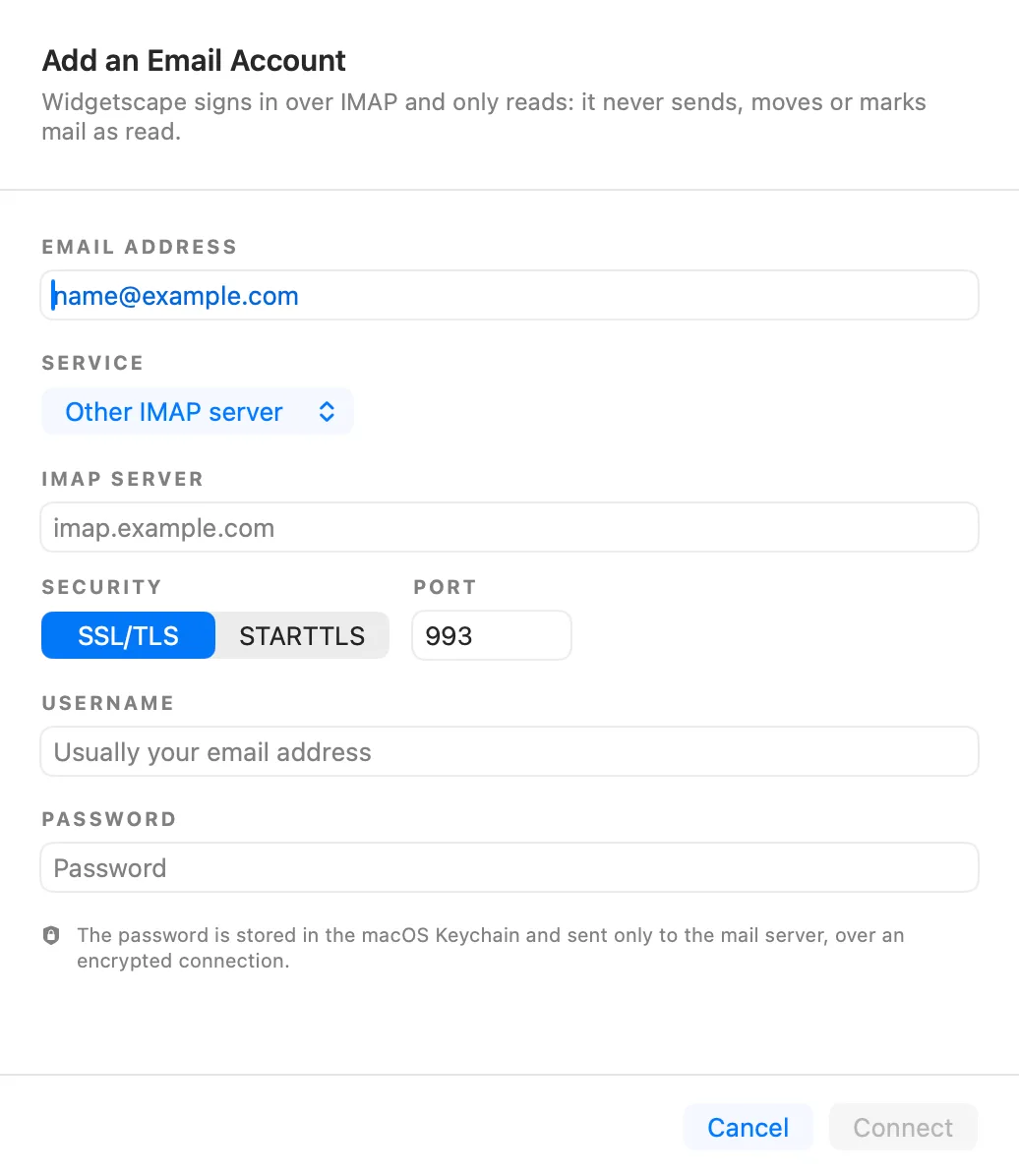
Choose Other IMAP server under SERVICE, then fill in:
- IMAP SERVER, such as imap.example.com.
- SECURITY: SSL/TLS or STARTTLS.
- PORT: 993 for SSL/TLS.
- USERNAME: usually your email address.
Widgetscape always uses an encrypted connection. If the server doesn’t offer one, Widgetscape doesn’t send your password. POP3 isn’t supported.
Outlook.com and Microsoft 365
Outlook.com, Hotmail and Microsoft 365 don’t accept passwords over IMAP. Connect them with Microsoft sign-in instead.
- In Email Accounts, click Microsoft 365 & Outlook.com.
- Sign in on Microsoft’s page in your browser.
- Return to Widgetscape.
If you type an Outlook, Hotmail or Live address in the IMAP form, click Use Microsoft sign-in.
Manage email accounts
On the Email widget’s Privacy tab, click Manage next to an account. In Email Accounts:
- Click an account to see its mailboxes and when it last updated.
- To check every account now, click Refresh accounts.
- To remove an account, click the … button next to it, then choose Disconnect account.
Passwords and sign-ins are kept in the macOS Keychain. Message summaries kept on your Mac are encrypted. Removing an account deletes them.
To choose mailboxes, previews and how much a widget shows, see Calendar & Tasks widgets.
Weather and Sun Path location
Weather and Sun Path show a place you choose, or follow your Mac’s location. A new widget starts with a chosen city.
Choose a city
- Open the widget’s General tab.
- Under Location, click Choose a city.
- In Search cities, type at least two letters, then click a city.
Choosing a city needs no permission.
Follow your Mac’s location
- Open the widget’s General tab.
- Under Location, click Automatic.
- If macOS asks, allow Location Services for Widgetscape.
Your location is used only to find your city. To update it, click Refresh. If you turned location off, click Open Settings and turn on Widgetscape in System Settings › Privacy & Security › Location Services.
Where the location goes
- Weather sends the place’s coordinates, rounded to about 1 km, its time zone and your preferred language to Apple Weather to get the forecast. To call Apple Weather, it first gets a short-lived access key from widgetscape.vpolabs.com. That request carries only the app’s name and version, never your location.
- Sun Path calculates sunrise, sunset and the sun’s path on your Mac.
To see Apple’s weather data sources, right-click a Weather widget on your desktop and choose Weather Data Sources.