
Help
Feedback and support
Click Feedback at the bottom of the sidebar, write your message and click Send. The Widgetscape team answers right there, in the app.
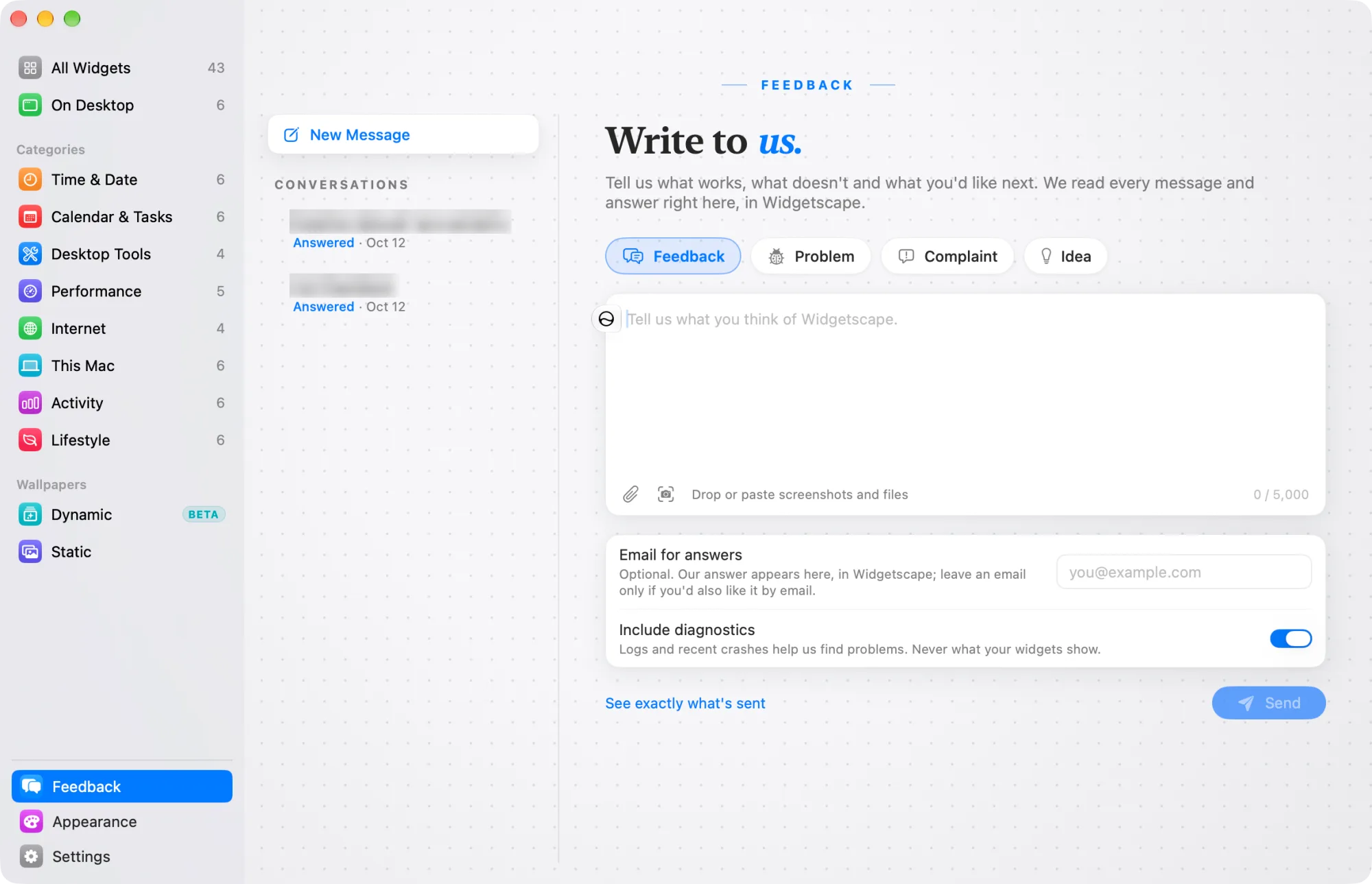
Send feedback
- Open Feedback in any of these ways:
- Click Feedback in the sidebar.
- Choose Feedback in the menu bar menu.
- Choose Help › Feedback.
- Choose Settings › About, then click Send Feedback.
- Choose what it is: Feedback, Problem, Complaint or Idea.
- Write your message.
- To add screenshots or files, drop or paste them into the message, or click the attach buttons.
- Optionally, type an email address if you’d also like the answer by email. You don’t need one: the answer appears in Widgetscape.
- Click Send, or press ⌘Return.
After sending, you see Thank you! and a reference, such as WS-7K3P9Q. Keep it if you want to ask about your message later.
What’s sent
Your message, its kind, your attachments, the app and macOS versions and your Mac model. If you gave an email address, that too.
Include diagnostics adds Widgetscape’s logs and a list of recent crashes. They help the team find problems and never include what your widgets show. Turn it off to leave them out.
To see every byte before you send, click See exactly what’s sent.
Read replies
Your messages become private conversations in the Feedback pane. Widgetscape checks for replies every few minutes while it runs.
When a reply arrives, the Feedback row in the sidebar shows the number of unread replies, and the menu bar menu shows Feedback — 1 new reply.
Each conversation shows Waiting for a reply, Answered or Closed. To reply, type in the field under the conversation and click Send.
No account is needed. A random secret in your Mac’s Keychain keeps the conversation readable only on your Mac. To forget a conversation, right-click it and choose Remove from This Mac.
After a crash
If Widgetscape or your desktop widgets quit unexpectedly, the Widgetscape Crash Reporter window opens.
- Read what happened. To see the whole report first, click See exactly what’s sent.
- Optionally, describe what you were doing, and add your email if you’d like an answer.
- Click Send Report, or Don’t Send to send nothing.
After sending, the window shows a Reference, such as WS-7K3P9Q. If the crash is already fixed in a newer version, it says so.
To send future reports without this window, select Send crash reports automatically. You can change this later in Settings › Privacy & Permissions › Crash reports.
A crash report contains technical details, such as what the app was doing, the macOS crash report with your Mac’s identifiers removed, the app and macOS versions and your Mac model. It never contains what your widgets show, your files, your license key or your account name.
If widgets keep crashing
If the desktop widgets crash 3 times within 5 minutes while starting, Widgetscape stops restarting them. The Crash Reporter then asks what to do when you close it:
- Start Desktop widgets again: try again now.
- Start with the default layout: start the widgets without your saved layout. Your current layout is kept as a backup.
- Keep it stopped: you can choose again the next time you open Widgetscape.
The Widgetscape window shows Widgets Stopped After Repeated Crashes. Click Review Crash Report to send the report, or Start Widgets Again.
Contact support
Write to support@vpolabs.com. For a refund or a license question, include your order reference.
You can also click Support in Settings › About to start an email.
If the Feedback pane shows Feedback Isn’t Available, write to support@vpolabs.com instead.