
Basics
Get started
Download Widgetscape, move it to Applications, then click Set Up My Desktop in the welcome to put six widgets on your desktop.
What you need
- macOS 14 Sonoma or later
- A Mac with Apple silicon (M1 or later). Macs with an Intel processor aren’t supported.
You don’t need an account to use Widgetscape or to start the trial.
Install Widgetscape
- Download Widgetscape from the Widgetscape website.
- Open the downloaded disk image.
- Open Widgetscape. If macOS asks whether to open it, click Open.
- When you see Move to Applications?, click Move to Applications.
Widgetscape copies itself to the Applications folder and opens again from there. It then ejects the disk image, or moves the downloaded copy to the Trash.
Only the copy in Applications runs your widgets, starts at login and installs updates, so keep Widgetscape there.
Note: If the move doesn’t work, drag Widgetscape to the Applications folder in Finder. If an older copy is open from Applications, quit it, then click Try Again.
If you click Not Now, Widgetscape asks again the next time you open it. Select Don’t ask again to stop the question.
The welcome
The welcome opens the first time you open Widgetscape. While the window connects, you may see “Connecting to the Desktop Agent…” for a moment.
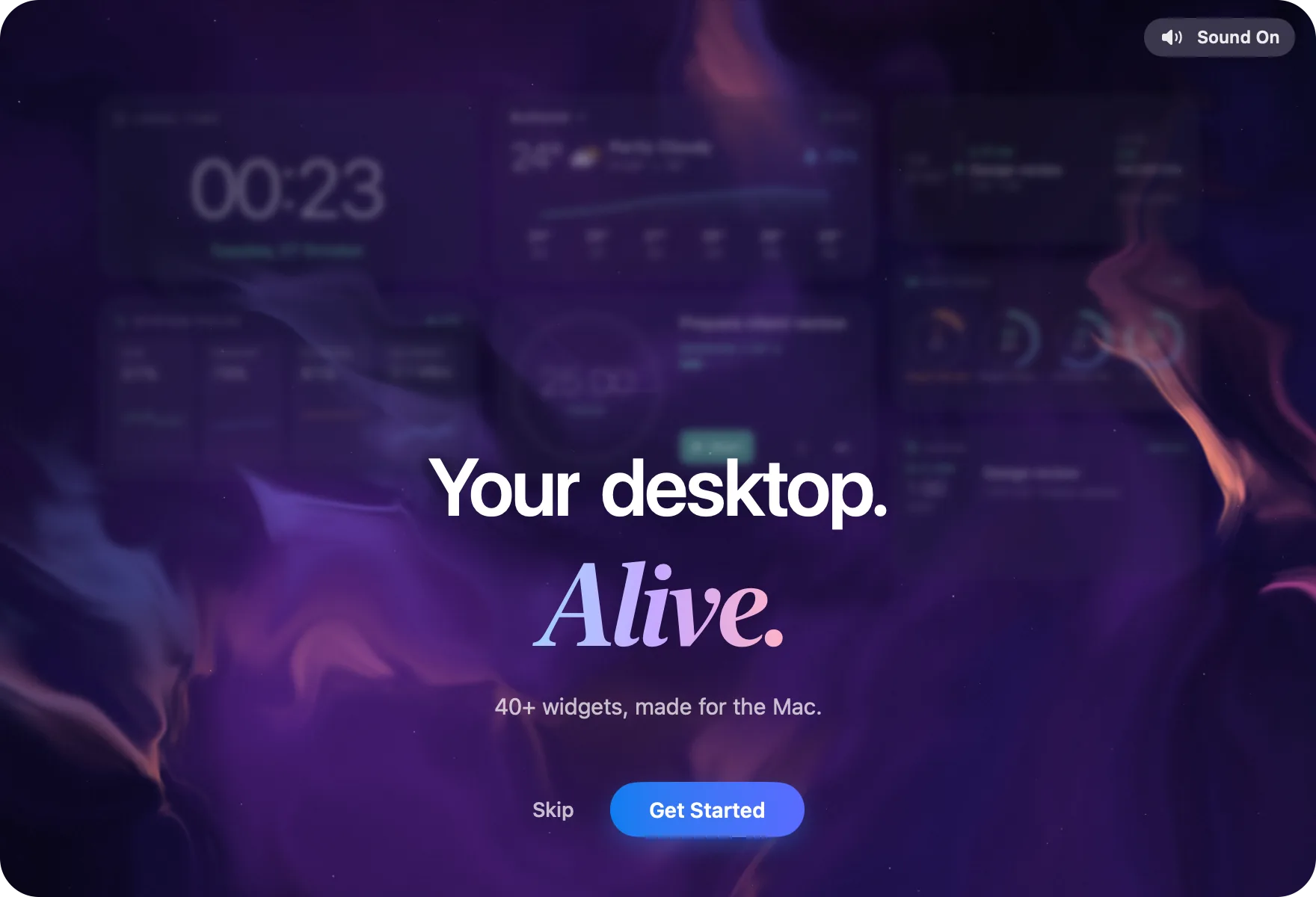
- Click Get Started. To jump ahead, click Skip.
- Read each page, then click Continue.
- On Your Desk, click Set Up My Desktop, or click Not Now to start with an empty desktop.
- If you set up your desktop, click Continue when the widgets are in place.
- On All Set, click Open Widget Library.
The window then shows All Widgets, every widget you can add.
The pages before Your Desk are:
- Live: widgets move while you work, just behind your windows.
- Your Look: one palette, surface and Light or Dark for every widget.
- Privacy: each widget shows what it reads. Widgetscape sends anonymous usage counts, never what your widgets show. Turn them off in Settings › Privacy & Permissions.
All Set shows your trial and how many widgets stay free.
You can also use ← and → to move between pages, and Back to go back. To mute the welcome, click Sound On in the top-right corner.
To see the welcome again, choose Settings › General, then click Show Welcome.
Set Up My Desktop
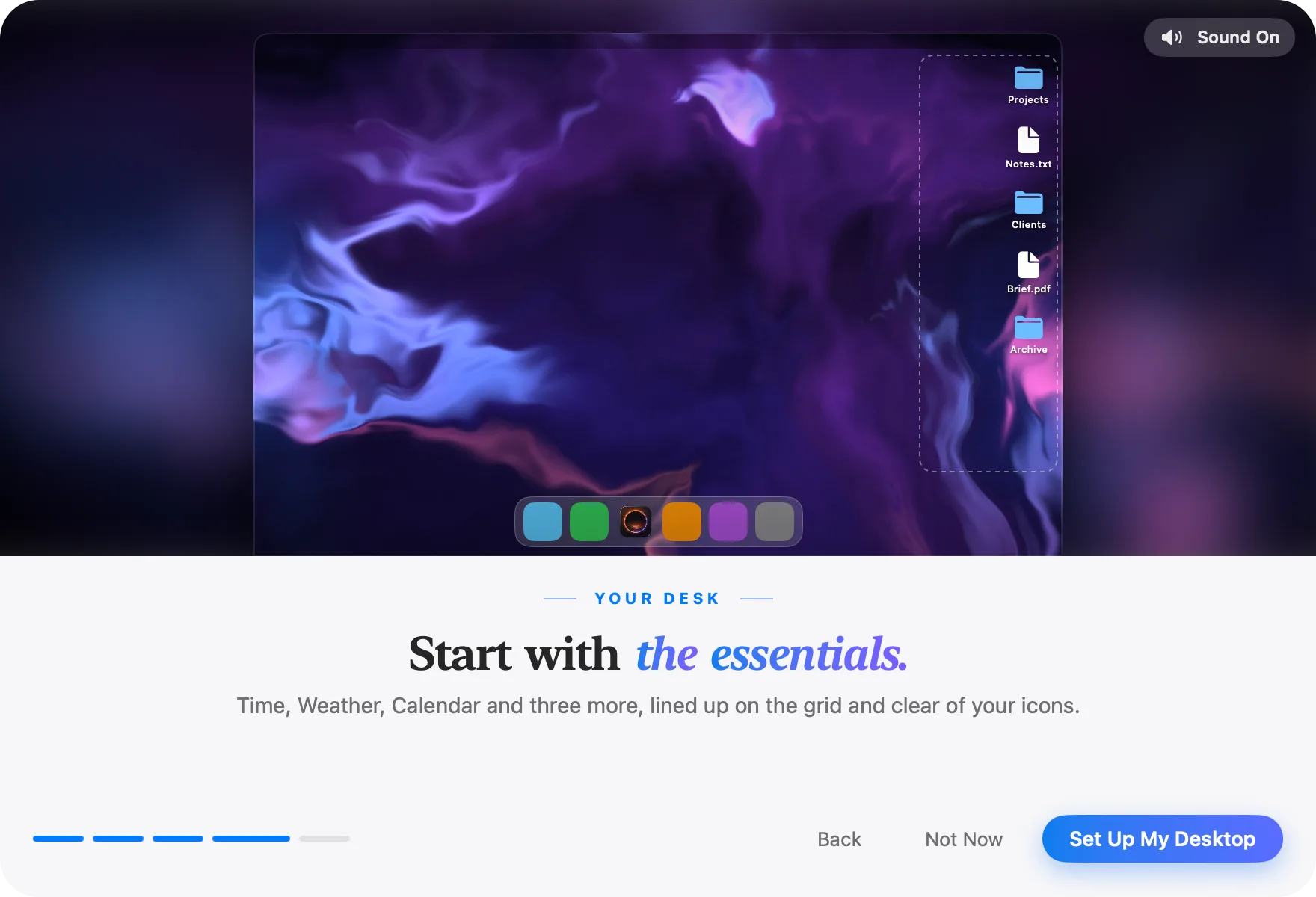
Set Up My Desktop puts six widgets on the display the Widgetscape window is on: Time, Weather, Calendar, System Pulse, Batteries and Focus Timer. All six are free for good.
They line up on the grid at Medium size in the top-left of the screen. The right side stays clear for the icons on your desktop.
Your Desk appears only on an empty desktop, or one Widgetscape set up. Set Up My Desktop replaces any other widgets there with the six; they stay in the library.
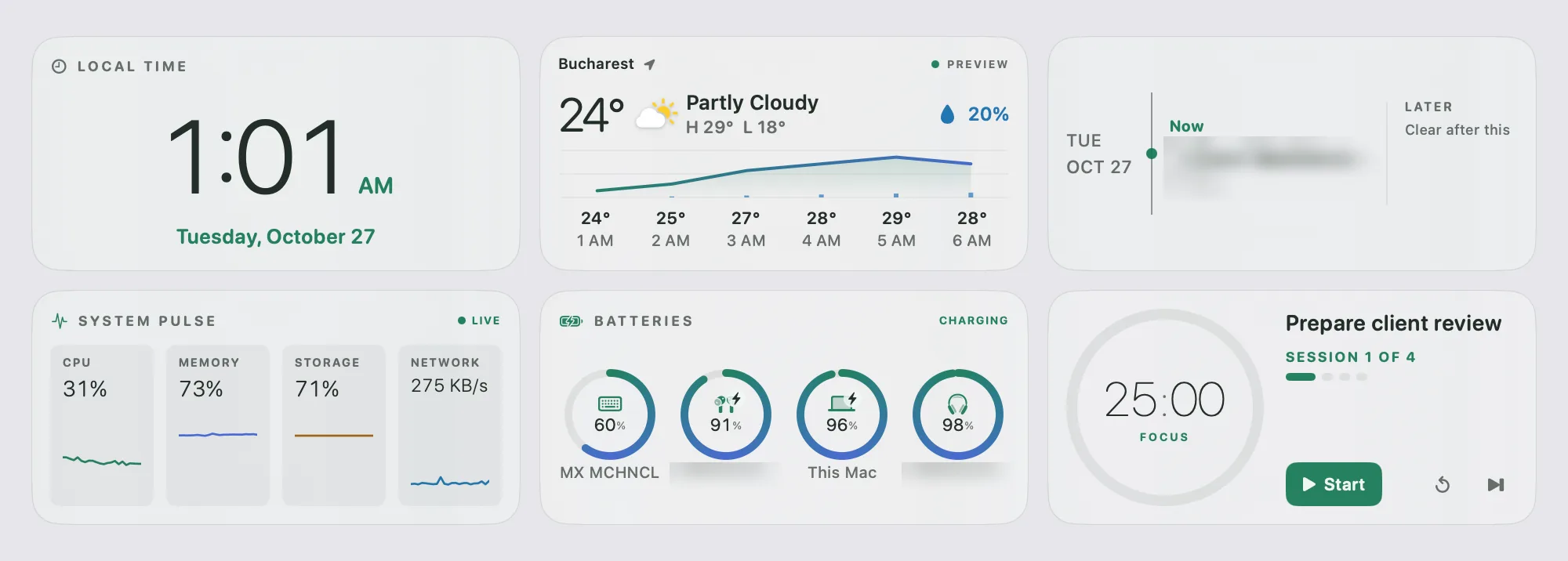
Some widgets need a permission before they show your data. Calendar, for example, needs access to your calendars. On Desktop in the sidebar then shows an orange key with a number. Open On Desktop and click the widget marked with the key to allow access. See Permissions and privacy.
Your free trial
Your trial starts the first time you open Widgetscape. For 14 days, every widget works. No account or card is needed.
- The card at the bottom of the sidebar shows Free trial and the days left, with Buy Pro and the price, and Enter License Key.
- Three days before the trial ends, and on the day it ends, a reminder appears at the top of the window. If you allowed Widgetscape’s notifications, it also arrives as a notification.
- After the trial, 8 widgets stay free: Time, Analog Clock, Calendar, Focus Timer, System Pulse, Batteries, Weather, Moon Phase. Pro widgets on your desktop pause, and keep their settings, until you unlock Pro.
See Free widgets, trial and Pro.
Where to go next
- Learn your way around in The Widgetscape window.
- Add more widgets and move them in Add, move and remove widgets.
- Change a widget’s style, size and content in Change a widget.
- Change the look of every widget at once in Appearance.