
Your desktop
Wallpapers
Open a wallpaper under Wallpapers in the sidebar and click Set as Wallpaper. To put back the wallpaper you had before, click Turn Off.
Widgetscape has two kinds of wallpaper:
- Static: free pictures at 8K, each with a light or dark partner.
- Dynamic: Living Sky, drawn live on your Mac from the time, the place and the weather. It is part of Widgetscape Pro and is in beta.
On each display you can use one or the other. Setting one turns the other off on that display.
Static wallpapers
Click Static under Wallpapers in the sidebar. There are 23 pictures in collections such as Liquid Light, Calm, Landscapes and Abstract. New wallpapers arrive here without an app update.
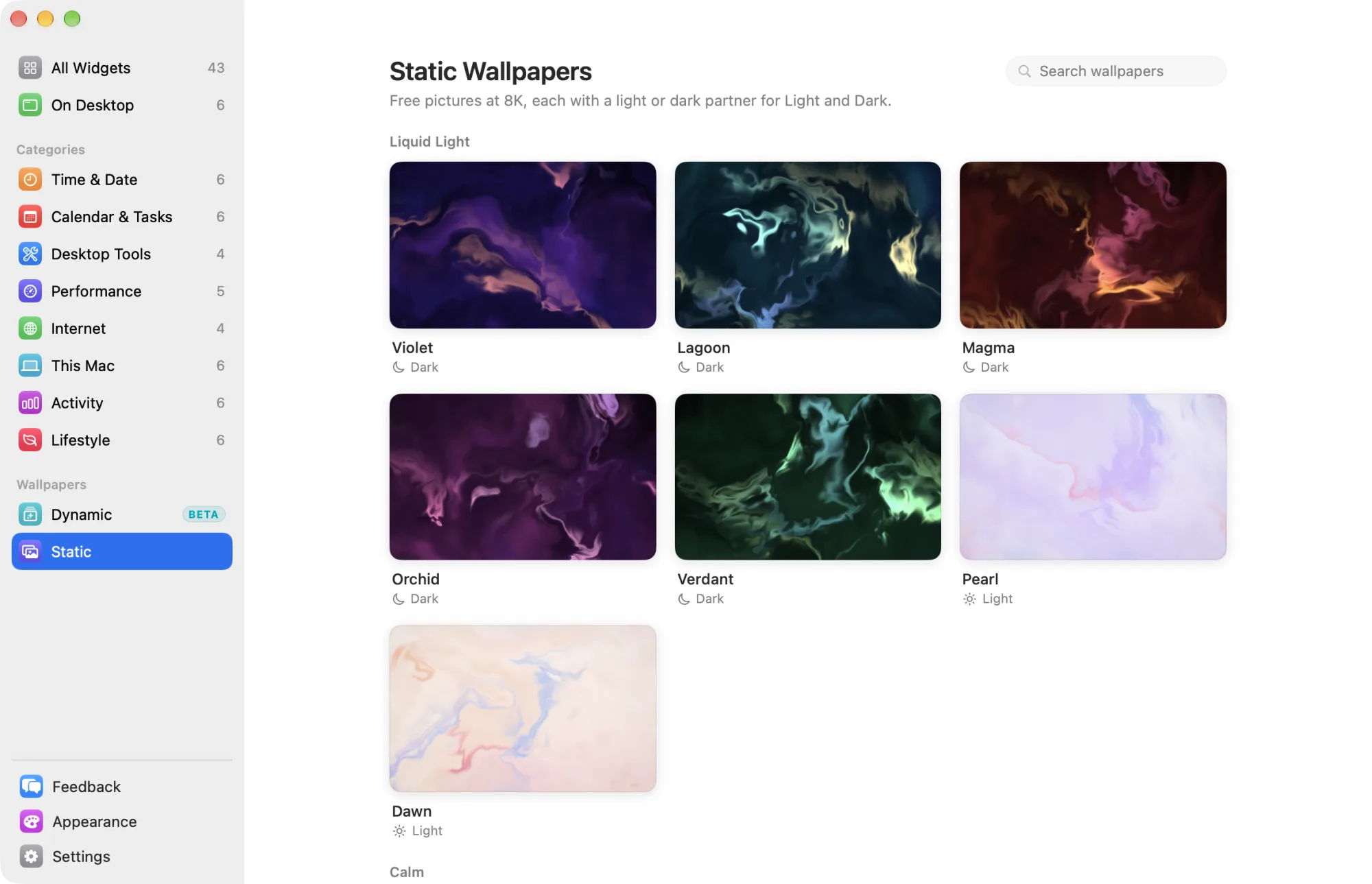
The library downloads from VPO Labs the first time you open it. After that, it stays on your Mac for when you are offline.
Set a static wallpaper
- Click Static under Wallpapers in the sidebar.
- Click a wallpaper to open its page.
- Click Set as Wallpaper, or press Return.
The picture downloads once, then becomes your wallpaper. To stop a download, click Cancel.
The bar beside Set as Wallpaper says where the wallpaper is in use, or what it will replace.
Light and Dark
Each static wallpaper has a light or dark partner. Under Light and Dark, set Change Automatically:
- Off: the picture stays all the time. This is the default.
- Match System Appearance: the light picture in Light Mode and the dark one in Dark Mode, as set in System Settings › Appearance.
- Sunset to Sunrise: the dark picture from sunset to sunrise, the light one by day. The times come from the same location as Living Sky.
When it is on, Dark Version or Light Version shows the partner picture. Click another thumbnail to pick a different partner.
Desktop
- Displays: All Displays (default) uses every display, and any you connect. Chosen Displays lets you select the displays you want.
- Fit sets how the picture fills a screen of another shape: Fill Screen (default), Fit to Screen, Stretch to Fill Screen or Centre.
Desktop has its own Reset to Default for Displays and Fit.
Spaces and other wallpapers
macOS sets a wallpaper for one Space at a time. Widgetscape sets it again each time you switch Spaces, so a Space you haven’t visited yet shows its old picture until you open it.
If you choose another picture in System Settings or another app, that picture wins. Widgetscape leaves that display alone until you click Set as Wallpaper again.
Dynamic wallpapers: Living Sky
Click Dynamic under Wallpapers in the sidebar. Living Sky draws the sky as it is outside: the sun, the moon, the real stars, and clouds, rain, snow or fog from the forecast.
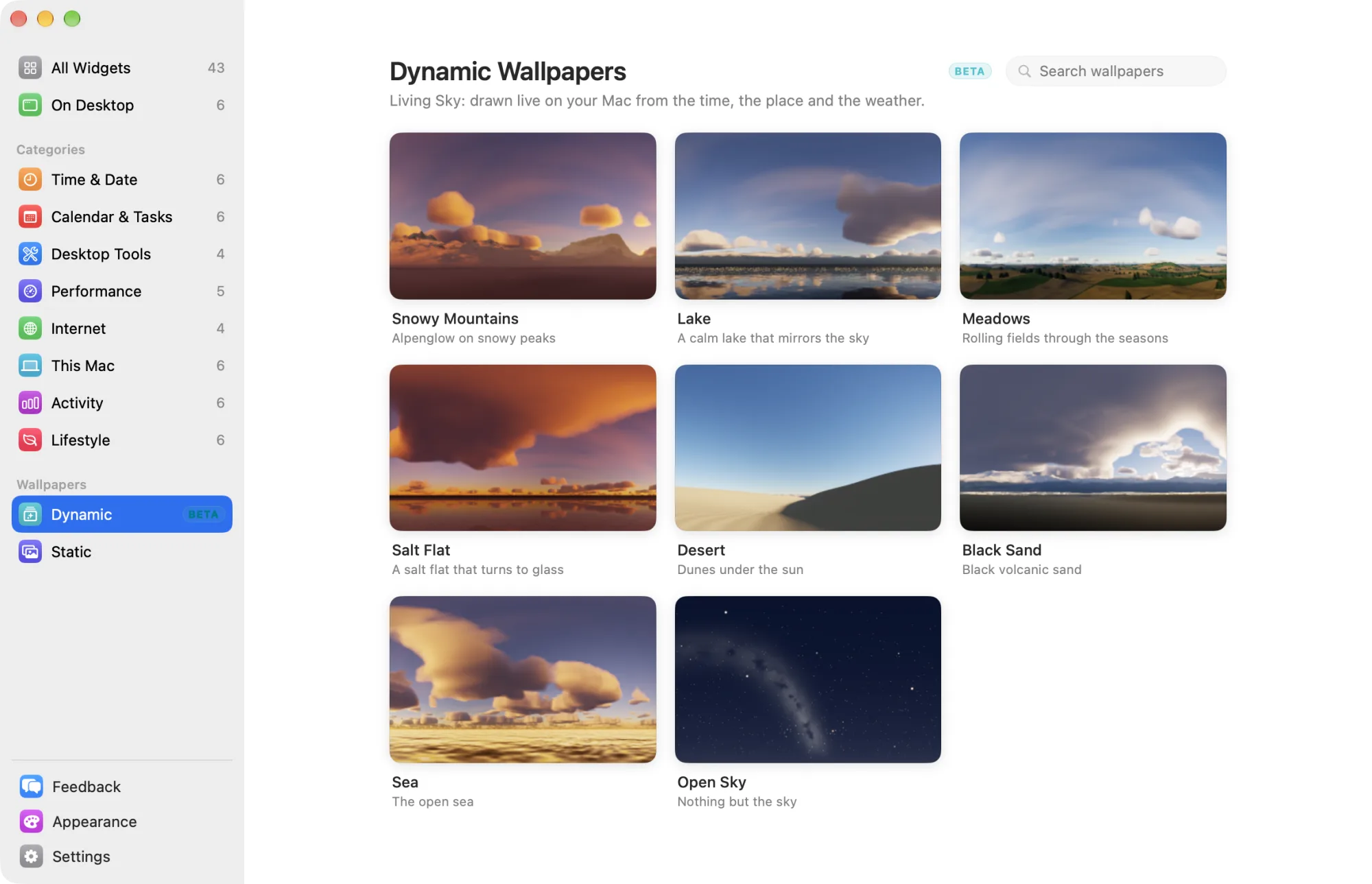
Pick a landscape: Snowy Mountains, Lake, Meadows, Salt Flat, Desert, Black Sand, Sea or Open Sky.
Set Living Sky
- Click Dynamic under Wallpapers in the sidebar.
- Click a landscape to open its page.
- Click Set as Wallpaper.
Living Sky is part of Widgetscape Pro. During the trial you can use it on your desktop. After the trial, you can still try every setting in the preview, but Set as Wallpaper is dimmed and a banner offers Buy. See Free widgets, trial and Pro.
Note: Dynamic wallpapers are in beta. They may change, and they use more energy than a static picture. Send your thoughts from Feedback in the sidebar.
Preview
The preview at the top is the same sky as on your desktop.
- Play a Day plays the next 24 hours in 15 seconds. Click Stop to end it.
- Drag the time slider to see another time of day. Click Now to go back.
- Weather chooses the weather in the preview. Live follows the forecast. Other choices change the preview only.
Settings
- Desktop › Displays: All Displays (default) or Chosen Displays.
- Sky › Appearance: Auto (default) matches your Mac’s Light or Dark appearance. Light shows the sky as it is. Dark makes it dimmer and cooler by day.
- Location: Automatic uses your Mac’s location, or Choose a city to search for one. It is the same choice as the Weather and Sun Path widgets.
Advanced
Click Advanced to see more settings.
- Stars: Off, On (default) or With constellations.
- Mood: Pleasant (default) never lets clouds hide the whole sky, and nights are dark but never black. Realistic shows exactly what is outside, gray days included.
- Weather effects shows clouds, rain, snow and fog from the forecast. When off, the sky is always clear. On by default.
Under Animation:
- Field of view: how much of the sky fits across the screen, from 120° to 240°. The default is 200°.
- Sun and moon size: ×1 is their true size, up to ×8. The default is ×6.
- Cloud speed: times the real wind, so you can see the clouds move, from ×1 to ×20. The default is ×6.
- Frame rate: 4 fps, 8 fps (default), 15 fps or 30 fps while the clouds move. A still sky is drawn once a minute.
- Quality: Efficient uses the least energy, Balanced (default) is measured for your Mac’s chip, and High is the sharpest.
Tip: To use less energy, pick a lower Frame rate and the Efficient quality.
Reset to Default at the top of a landscape’s page puts back Living Sky’s look. Your displays, location and landscape stay.
Turn off a wallpaper
Open the wallpaper in use and click Turn Off. For a static wallpaper, Widgetscape puts back the wallpaper you had before. For Living Sky, your desktop picture shows again.
If a wallpaper doesn’t download
If a picture can’t download, its page says so. Click Try Again. If the library itself can’t load, check your internet connection and click Try Again.