
Widgets
Time & Date widgets
Clocks, countdowns and your day at a glance. Click any widget in Time & Date to open its settings page, then click Add to Desktop.
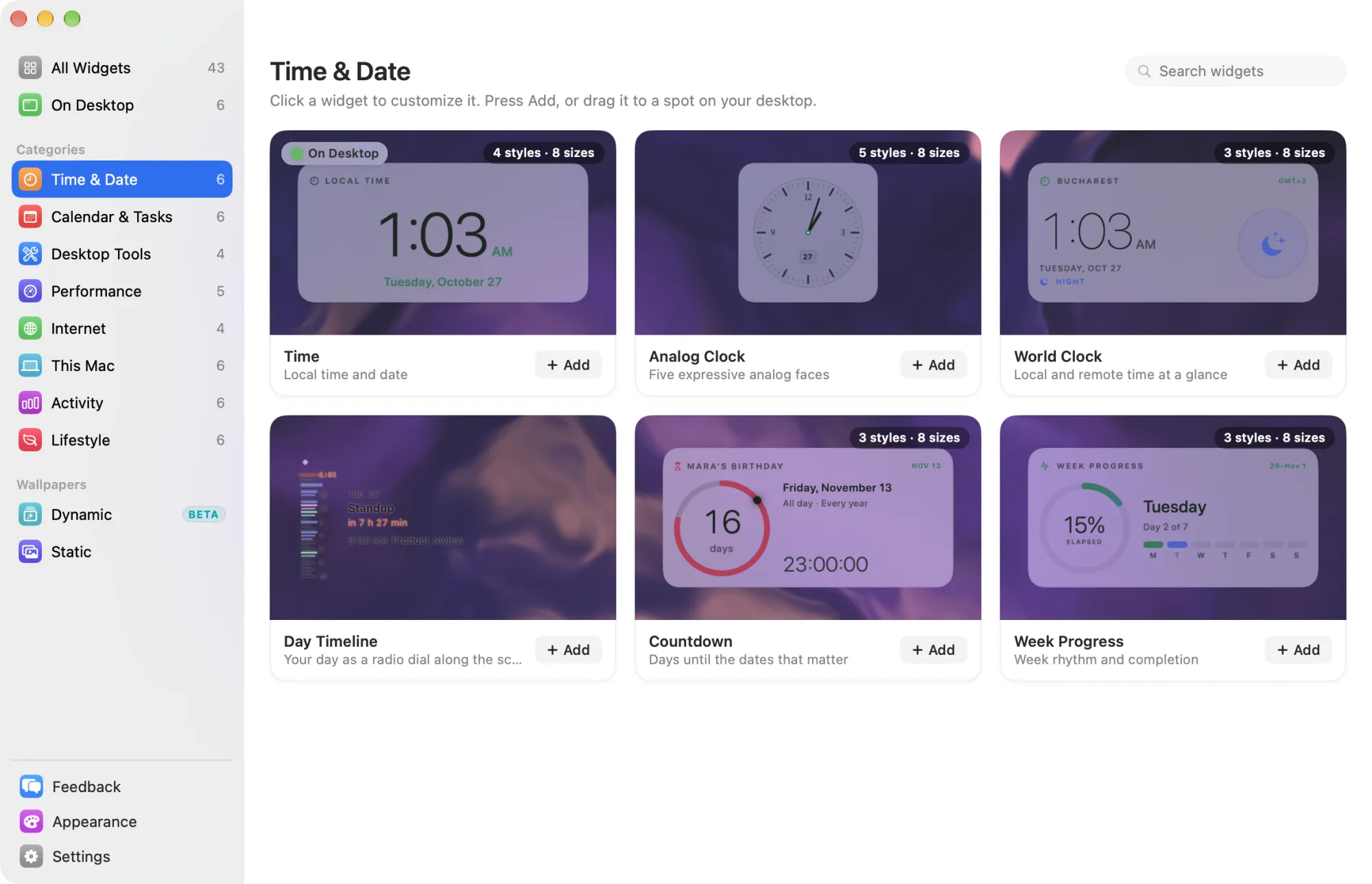
Widgets marked Free are among the 8 free widgets that keep working after the trial. The others need Widgetscape Pro. See Free widgets, trial and Pro. For the tabs every widget shares, see Change a widget.
Time
The local time and date, in large numerals. Free
Larger sizes show more. Wide adds the weekday and time zone beside the time. Large adds a day track and three facts: week, day and time left. Landscape and bigger add a month grid.
- Styles: Modern (default), Rounded, Mono and Editorial. The style sets the font of the numerals.
- Default size: Medium (2×1).
- Needs: nothing. It uses no data from your Mac.
- On the desktop: a click selects the widget. There are no click actions.
| Setting | Tab | What it does |
|---|---|---|
| 24-hour time | General | Follows your Mac’s setting until you change it. |
| Seconds | Content | Adds seconds to the time. |
| Date, Weekday | Content | Show or hide each line. |
| Location | Content | Shows your city and time zone. |
| Weight, Time size | Content | Make the numerals lighter, bolder, smaller or larger. |
Analog Clock
A clock with hands, in five dial designs. Free
At Medium and wider sizes the dial sits beside the weekday, the date and the time in figures. Extra Large adds a month grid.
- Styles: Atelier (default), Orbit, Railway, Midnight and Minimal.
- Default size: Small (1×1).
- Needs: nothing.
- On the desktop: no click actions.
Settings:
- Second hand (General): adds a moving second hand. It is off by default.
- Date window and Numerals (Content): show or hide the date inside the dial and the numbers around it.
- Show title (Layout): puts “Analog Clock” in the top-left corner. It fits only at Tall and Huge; at other sizes Layout says “Too small at this size”.
World Clock
The time in another city, with sunrise and sunset. Pro
Large adds how far ahead or behind your own time the city is. Landscape, Extra Large and Huge add an ELSEWHERE list of other major cities.
- Styles: Digital (default), Dial (a 24-hour dial) and Daylight (day and night).
- Default size: Medium (2×1).
- On the desktop: no click actions.
To choose the city, type at least two letters in Location on the General tab, then pick a result. Each World Clock shows one city. To show another, click Add Another Clock on the Content tab. Remove This Clock removes the one you’re editing; one World Clock always stays.
Also in Content: 24-hour time, Date and UTC offset.
Needs: no permission. After a few letters, the city search also asks Apple Maps for matches. The clock itself works offline.
Day Timeline
Your day as a radio dial along the edge of the screen. Today’s events are stations, and a glowing needle marks now. Pro
- Position: Left (default), Right, Top, Bottom or Floating on the General tab. Docked, the dial runs along that edge and has a Thickness instead of a size: Slim, Regular (default) or Wide. Floating, it is a box you move and size like any widget: Medium or Wide.
- Needle: Radio (warm red-orange) or Accent.
- Content sets the Hours the dial covers (Working hours, Waking hours, Whole day or Custom), Station labels, Ticks, Hour numerals, All-day events and Focus sessions from a running Focus Timer.
- Content also has Add button: a + on hover that adds an event.
- Privacy › On the desktop: Busy only hides titles, places and join links.
Needs: calendar access or a connected calendar account to show events. Without it, the dial still tells the time. See Calendars, email and location.
On the desktop:
- Hover a station to see its details and a Join button for online meetings.
- Click a station to open the event. Click anywhere else on the dial to open Calendar, or the app you choose in Content › On click.
- Scroll or drag along the dial to tune through the day. The needle returns to now after a few seconds.
- Right-click for Thickness ▸ and Position ▸.
Countdown
Days until the dates that matter, such as birthdays, trips and launches. Pro
- Styles: Ring (default) counts down to one event to the second. List shows your events with progress. Year shows the year as one dot per day; hover a dot to see its date.
- Default size: Medium (2×1).
- Needs: nothing. Your events stay with the widget on this Mac.
To add an event, open the Content tab and click Add Event. Give it a Title, a Date, a time or All day, a Colour, and turn on Repeat every year if it comes back. You can add up to 8 events. Click a row to edit it.
- Event (General): which event the Ring shows. Next follows the soonest.
- Order (Content): Soonest First or As Arranged, for List and Year.
On its day an event reads “Today”. The day after, a yearly event moves to next year and a one-off event goes away.
Week Progress
How far you are through the week. Pro
- Styles: Rhythm (default) shows a seven-day pulse. Workweek covers Monday to Friday. Milestones shows what comes next, such as the weekend.
- Default size: Medium (2×1).
- Setting: Include weekend on the General tab. Turn it off to count five days.
- Needs: nothing.
- On the desktop: no click actions.
The week always starts on Monday.