
Widgets
Calendar & Tasks widgets
Your events, reminders, mail and focus time on the desktop. Click any widget in Calendar & Tasks to open its settings page, then click Add to Desktop.
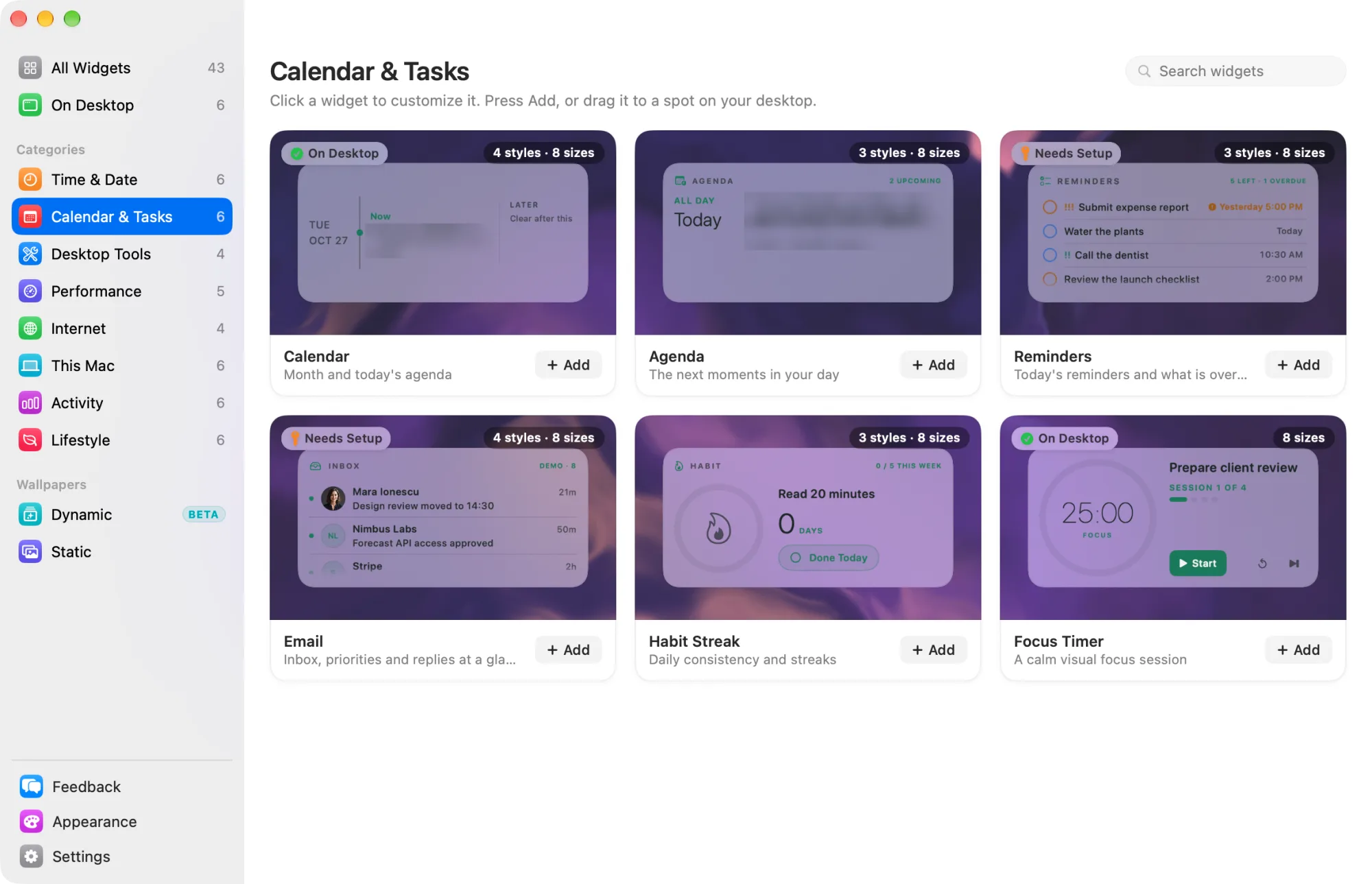
Widgets marked Free are among the 8 free widgets that keep working after the trial. The others need Widgetscape Pro. See Free widgets, trial and Pro.
Calendar, Agenda, Reminders and Email share two settings at the end of the Content tab:
- On click: what a click on the widget opens. Choose the default app, another installed app, Open in Browser (Email only), Choose Another App or Do Nothing. Buttons and rows keep their own actions.
- Add button: a + on hover that adds an event, a reminder or a new message.
Calendar
Your month and today’s agenda. Free
- Styles: Dayline (default) shows a live view of today. Month Lens shows the month and how busy each day is. Week Flow shows your week. Availability finds your next free time.
- Default size: Large (2×2).
- Needs: access to Calendars on your Mac, or a calendar account you connect. Click Allow or Connect on the Privacy tab. See Calendars, email and location.
| Setting | Tab | What it does |
|---|---|---|
| Calendars | General | Choose which calendars show, and give each its own color. |
| Calendar colours | Content | The same colors, as a list. |
| All-day events, Declined events | Content | Show or hide them. |
| Working hours | Content | The part of the day the widget focuses on. |
| Free time | Content | Highlights usable gaps (Dayline and Week Flow). |
| Next meeting countdown | Content | Dayline: the time until the next meeting. |
| Day dots | Content | By calendar: one dot per calendar, in its color. Single: one dot for a day with events. Month Lens, Week Flow, and Dayline at Huge. |
| Meeting duration | Content | The shortest free slot Availability looks for. |
| On the desktop | Privacy | Busy only hides titles and locations. |
On the desktop, click an event for its details, with Join for online meetings, Copy link and Open in Calendar. Month Lens has arrows to change the month. Availability has a copy button for the free slot it found.
Agenda
The next events in your day. Pro
- Styles: Next Up (default) shows one event clearly. List shows what’s coming. Timeline places events in your day.
- Default size: Medium (2×1).
- Needs: the same calendar access as Calendar. See Calendars, email and location.
Settings:
- Events shown (General): up to 12 on larger sizes.
- Declined events (Content): keeps declined invitations in the list.
- Day dots (Content): with List at Extra Large or Huge, sets the month’s dots, as on Calendar.
Agenda shows every calendar you’ve connected, with full event titles.
On the desktop, click an event for its details. Rows with an online meeting have a Join button.
Reminders
Today’s reminders and what is overdue. Pro
- Styles: List (default) shows every reminder, ready to check off. Up Next shows the next one, large. Count shows how many are left.
- Default size: Medium (2×1).
- Needs: access to Reminders. Click Allow on the Privacy tab. See Permissions and privacy.
| Setting | Tab | What it does |
|---|---|---|
| Lists | General, Content | Show all lists or only the ones you choose. |
| Completed today | Content | Keeps done reminders in the list, crossed out. |
| Due times, List names | Content | Show or hide them under each reminder. |
| Reminders without a date | Content | Counts them as today’s. |
On the desktop, click a reminder’s circle to mark it done. The change goes back to the Reminders app.
Your inbox, priorities and replies at a glance. Widgetscape only reads mail. Pro
- Styles: Inbox (default), Priority, People (who needs a reply) and Digest (a calm summary).
- Default size: Large (2×2).
- Needs: an email account. Click Connect on the Privacy tab. Use IMAP with an app password for Gmail, iCloud, Yahoo, Proton Mail and others, or Microsoft sign-in for Microsoft 365 and Outlook.com. See Calendars, email and location.
| Setting | Tab | What it does |
|---|---|---|
| Unread only | General | Hides messages already read. |
| Priority only | Content | Shows only important or flagged messages. |
| Message previews | Content | Adds a short excerpt when there is room. |
| Recent mail | Content | How old a message can be, from 24 hours to 30 days. |
| Mailboxes | Content | All inboxes, or the mailboxes you pick. |
| On the desktop | Privacy | Senders only hides subjects and previews. |
On the desktop, Reply starts a reply in your mail app, and Open inbox opens your mail.
Habit Streak
One daily habit and your streak. Pro
- Styles: Streak (default), Week (seven days) and Momentum (four weeks).
- Default size: Medium (2×1).
- Needs: nothing. Your progress stays with the widget on this Mac.
Settings:
- Habit (General): the name, such as “Read 20 minutes”.
- Weekly target (Content): how many days a week count as on track.
- Personal best (Content): shows your longest streak.
On the desktop, click Done Today when you’ve done it. Click again to undo. Only today can be marked. Reset to Default never clears your history.
Focus Timer
A calm focus timer with breaks. Free
- Styles: one look; there is no style to choose.
- Default size: Large (2×2).
- Needs: nothing.
| Setting | Tab | What it does |
|---|---|---|
| Plan | General | 25 / 5, 50 / 10 or Custom minutes of focus and break. |
| Focus, Break, Rounds | Content | Your own durations and sessions per cycle. |
| Intention | Content | The line shown on the widget. |
| Daily goal, Active days | Content | Your target minutes and the days that count. |
| Auto-start break | Content | Starts the break when focus ends. |
| Completion sound | Content | None, Soft Chime, Glass or Ping. |
On the desktop, use Start, Pause, Resume, Reset and Skip. A running session keeps going through restarts and sleep. A Day Timeline can show it on its dial.