
Widgets
Internet widgets
Your network, your connection, the services you rely on and the web pages you follow. Click any widget in Internet to open its settings page, then click Add to Desktop.
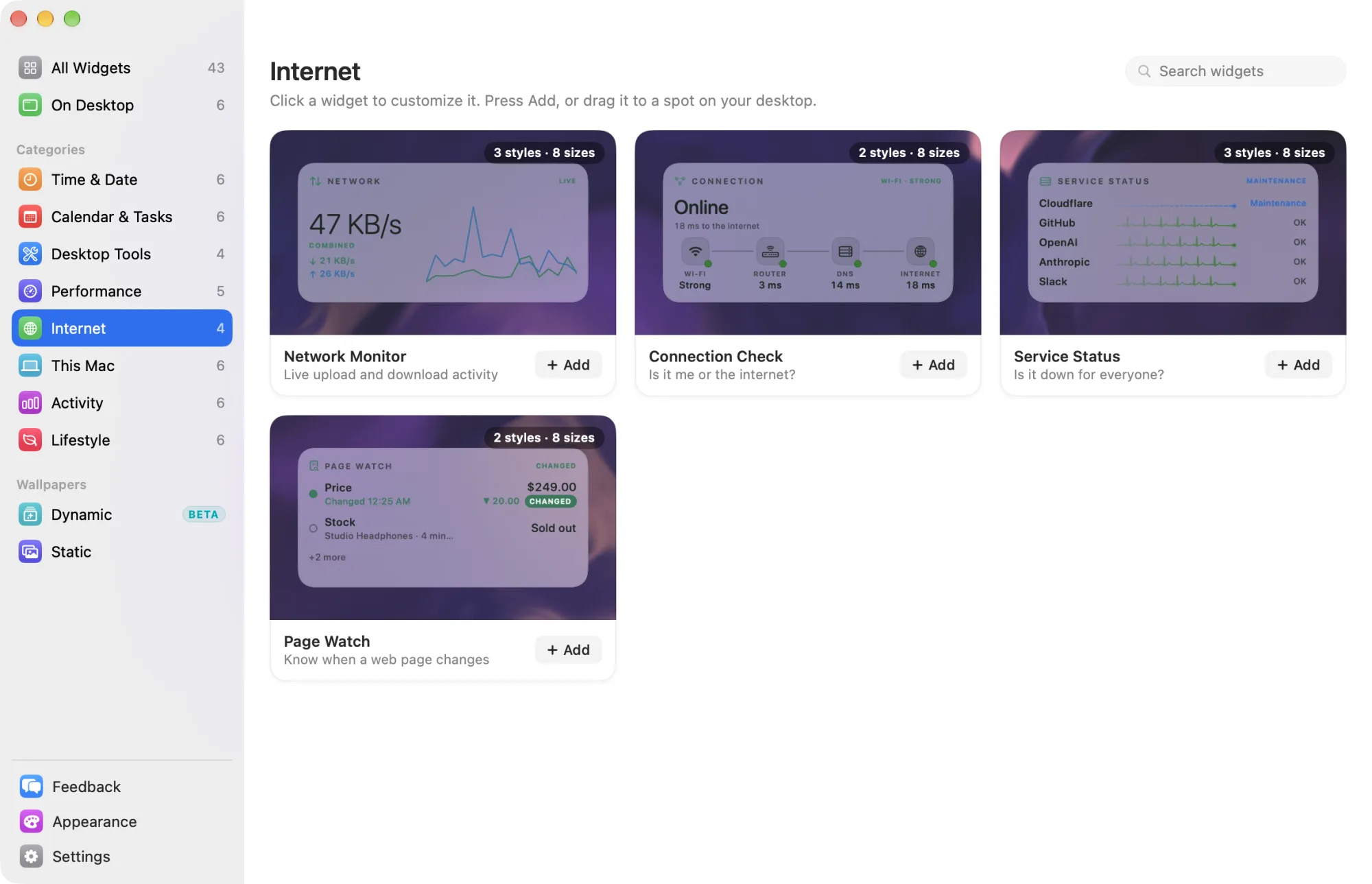
All four Internet widgets need Widgetscape Pro after the trial. See Free widgets, trial and Pro. Each one comes in every size.
Network Monitor
Live upload and download activity. Pro
- Styles: Throughput (default) shows combined live traffic. Split shows download and upload apart. Activity shows the direction and the peak.
- Default size: Medium (2×1).
- Needs: nothing. It reads your Mac’s own traffic counters and sends nothing.
- Settings: the style only. There is no Content tab.
- On the desktop: no click actions.
The widget adds up every active connection, such as Wi-Fi and Ethernet. The header status reads Live while data moves and Idle when nothing does. Readings update every 5 seconds, or every 10 seconds in Low Power Mode.
Connection Check
Is it me or the internet? Pro
- Styles: Chain (default) shows Wi-Fi, router, DNS and internet as four links. Timeline shows today’s outages, minute by minute.
- Default size: Medium (2×1).
- Needs: Local Network access on macOS 15 and later, to time your router. macOS asks once. See Permissions and privacy.
- Settings: the style only. There is no Content tab.
The headline names the first link in trouble, such as “Router not responding” or “DNS is slow”. Larger sizes add recent outages. Timeline shows today’s uptime, the longest outage and how many there were.
Tiny probes that carry no data go to your router, your DNS server, 1.1.1.1 and 8.8.8.8 every 30 seconds, and every 5 seconds while something is wrong. The network’s name is never read. Outages from today and the last 7 days stay on this Mac. Without Local Network access, the router check is skipped and never reported as down.
On the desktop, point at the widget and it checks every 5 seconds while the pointer stays there.
Service Status
Is it down for everyone? Pro
- Styles: Pulse (default) draws a heartbeat per service. List shows a dot, the name and the state. Grid shows tiles with a state ring.
- Default size: Medium (2×1).
- Needs: nothing. It reads public status pages, with no account and no cookies. Nothing about you or this Mac is sent.
Each service reads Operational, Degraded, Partial outage, Major outage, Maintenance or Unknown. Affected services come first, worst first.
Settings, on the Content tab:
- Services: starts with GitHub, Cloudflare, OpenAI, Anthropic and Slack. Click Add Service to choose from 18 services. Drag to reorder, or use Move Up, Move Down and Remove. A widget holds up to 12.
- Status Pages: paste the address of any page run on Atlassian Statuspage, such as status.example.com, then click Add.
Each status page is checked every 5 minutes, or every 2 minutes during an incident. On the desktop, click a service to open its status page in your browser.
Page Watch
Know when a web page changes. Pro
- Styles: List (default) shows every value, its change and the last check. Card shows one value large, with its history.
- Default size: Medium (2×1).
- Needs: notifications, only when Notify Me is on. macOS asks once, for Widgetscape Agent.
To watch a page:
- On the Content tab, click Add Page.
- Enter the page’s address.
- With Pick on, click each value to watch, such as a price or a stock level. Hold ⌥ to use links.
- Choose Alert When, Check Every and Notify Me, then click Add.
Alert When offers Changes, Goes Down, Goes Up, Is Below and Is Above for numbers, or Contains for text. Check Every runs from 15 Minutes to 1 Day; the default is 1 Hour. Click Watch the whole page instead to be told about any change to the page’s text. A widget holds up to 5 pages, with up to 5 values each.
Pages are read without your browser’s data. What they say stays on this Mac.
On the desktop, a changed value shows CHANGED. Click it, or its notification, to open the page and clear the badge.
Related
- Change a widget
- Permissions and privacy
- Previous: Performance widgets
- Next: This Mac widgets