
Widgets
Activity widgets
How you spend your day on your Mac: apps, meetings, pointer miles, the microphone and camera, AI tokens and code. Click any widget in Activity to open its settings page, then click Add to Desktop.
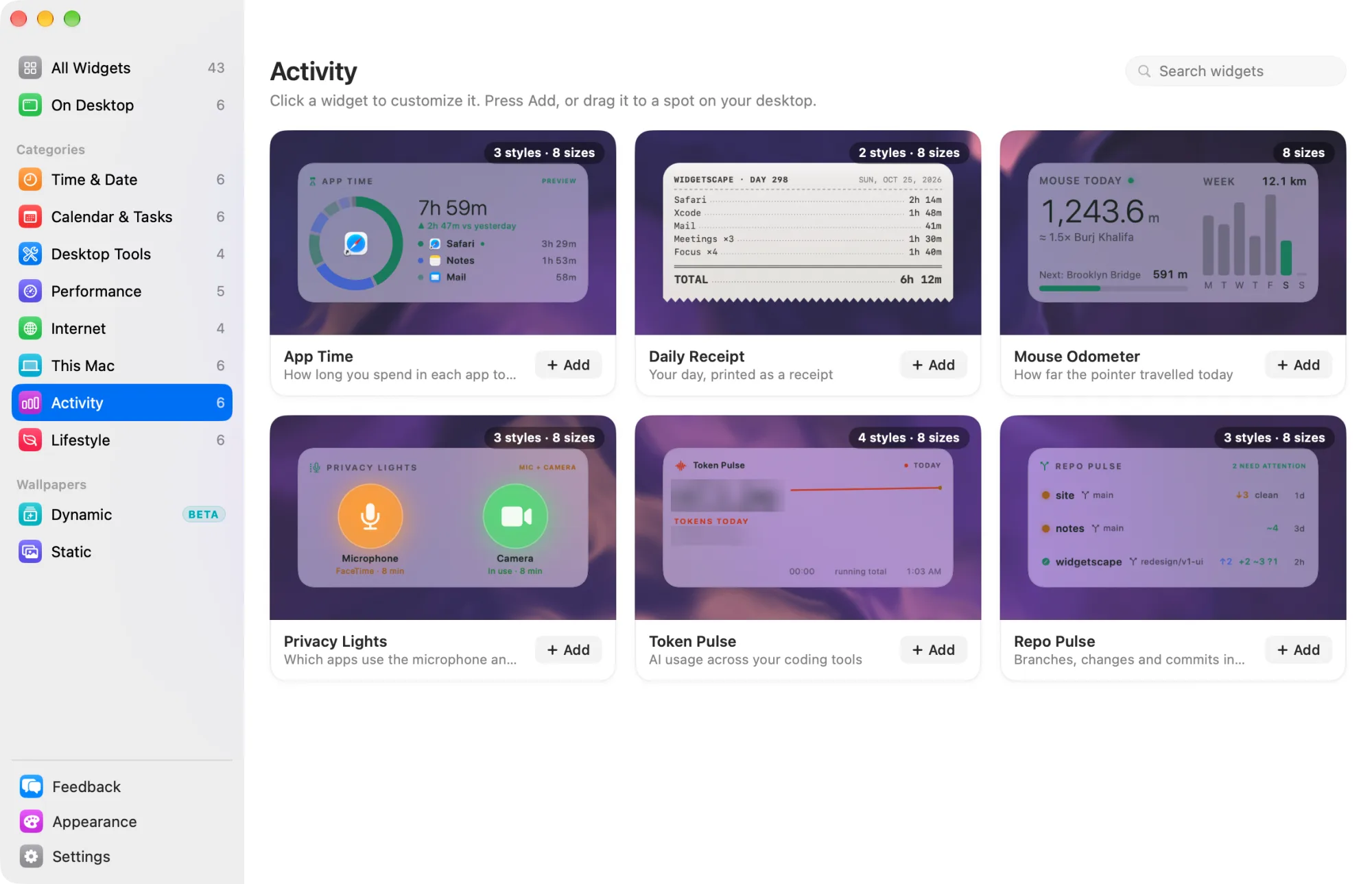
All six Activity widgets need Widgetscape Pro after the trial. See Free widgets, trial and Pro. Each one comes in every size. None of them asks for Accessibility, Input Monitoring, Screen Recording, Microphone or Camera access.
App Time
How long you spend in each app today. Pro
- Styles: Ring (default) shows a ring of today’s apps. Bars shows a bar per app. Timeline shows the day as a ribbon.
- Default size: Medium (2×1).
- Needs: nothing. Only the app in front is noted, never window titles, documents, web pages or keystrokes.
| Setting | Tab | What it does |
|---|---|---|
| Screen time goal | General | Off, or 2h to 10h. The ring fills toward it. |
| Count app time | Content | On by default. Turning it off pauses counting on this Mac. |
| Compare with | Content | Yesterday, 7-day average or Nothing, under the total. |
| Pause after | Content | Idle time that stops the count. The default is 3 min. |
| Day starts at | Content | Midnight to 6 AM, so late nights count toward the day before. |
| Group by category | Content | Groups apps as Productive, Communication, Entertainment and Other. |
| Show seconds | Content | Counts to the second instead of the minute. |
| Apps | Content | Set each app’s category, or Don’t count. |
App Time counts whenever Widgetscape runs, even with no App Time widget on the desktop. Thirty days of totals stay on this Mac. Reset Today (Content) starts today from zero. Delete on the Privacy tab removes the whole history.
On the desktop, with the Ring style, point at an app to highlight it, then click to open that app.
Daily Receipt
Your day, printed as a receipt. Pro
- Styles: Receipt (default) looks like thermal paper with a torn edge. Glass shows the same lines on the widget material.
- Default size: Medium (2×1).
- Needs: nothing of its own. The Meetings line uses the calendars you already connected.
The receipt records nothing itself. It prints what other widgets already count. Turn each line on or off on the Content tab:
- Active Time (the total line), Top Apps and First and Last Activity, from App Time
- Meetings, from your calendars, without titles
- Focus Sessions, from Focus Timer
- Pointer Distance, from Mouse Odometer
- Energy, from Energy Meter
- Clipboard Copies, from Clipboard
A line prints only on days its widget counted something.
On the desktop, point at the receipt to show Previous Day, Next Day, Copy as Image and Save Image. You can page back up to 7 days. Right-click and choose Receipt for the same two image commands.
Mouse Odometer
How far the pointer traveled today. Pro
- Styles: one look; there is no style to choose. Larger sizes show more.
- Default size: Medium (2×1).
- Needs: nothing.
- Settings: none of its own. There is no Content tab.
- On the desktop: no click actions.
It shows today’s distance next to a landmark, such as “≈ 1.5× Burj Khalifa”, and the next one to reach. Medium adds the week. Wider and larger sizes add your lifetime total as a trip, such as London → Paris, and a heat map of where the pointer went today.
Distance is counted only while a Mouse Odometer widget is on your desktop. Units are metric. The distance and the map stay on this Mac.
Privacy Lights
Which apps use the microphone and camera. Pro
- Styles: Lights (default) shows two big lights. Compact shows a quiet pill. Log shows today’s sessions.
- Default size: Medium (2×1).
- Needs: nothing. The widget reads whether each device is on, never sound or video.
A light shows the app using the microphone, such as Zoom. macOS doesn’t say which app uses the camera, so the camera light says In use.
Settings:
- Mute button (General): adds a mute button to the widget.
- App names, Device names and Elapsed time (Content): what each light and log entry shows.
- Keep today’s log (Content): the app, device, start and length of each session. It stays on this Mac. Clear empties it.
On the desktop, click the mute button in the header to mute or unmute the microphone. The mute stays set on the device.
Token Pulse
AI usage across your coding tools. Pro
- Styles: Flowline (default) shows usage moving through time. Stacked shows token types as layered streams. Bars compares intervals. Minimal shows the total, the cost and one quiet trend. Sessions shows which sessions used the tokens: bars split by session and a list of the top sessions; click a bar to list that hour or day.
- Default size: Medium (2×1).
- Needs: nothing. No account, API key or internet.
- On the desktop: click the chart to see the sessions behind that hour (Today) or day, each with its project folder, start time and share of the tokens.
Token Pulse reads the usage logs that your AI coding tools already write on this Mac. It keeps only token counts, model names, times and project folder names; conversation content is never kept. Choose tools under Sources on the Content tab: Codex, Claude, Gemini CLI, OpenCode, OpenClaw, Pi, Oh My Pi, Cline, Roo Code, Kilo Code and Cursor. Codex and Claude are on by default. For Cursor, it reads an existing usage cache and doesn’t sync from Cursor.
Settings:
- Period (General): Today, 7 days or Month.
- Group by (Content): Source or Token type.
- Show cost (Content): the cost a tool reports. Where a tool reports none, set Equivalent rate in US dollars per 1M tokens for an estimate.
- Show burn rate and Smooth trend (Content).
- Usage details (Content): requests, sessions, models and cache use for the period.
- Show project names (Privacy): on by default. Off, sessions show only the tool and start time.
- Accent (General): Follows Appearance, or Token Pulse’s own Flowline or Graphite colors.
Repo Pulse
Branches, changes and commits in your repositories. Pro
- Styles: List (default) shows a row per repository. Cards adds sparklines. Minimal shows names and branches only.
- Default size: Medium (2×1).
- Needs: git, from the Xcode Command Line Tools. Run
xcode-select --installin Terminal if it’s missing.
Each repository shows its branch, uncommitted changes, stashes, the last commit and commits per day for 14 days. Repositories that need attention are highlighted.
Settings:
- Repositories (Content): click Add Repository and choose folders. Up to 12.
- Uncommitted changes (Content): how long changes can wait before the repository is highlighted: Off, or 1 hour to 1 day. The default is 4 hours.
- Commit sparkline, Last commit and Stashes (Content › Show): show or hide each one.
- Behind the remote and Attention first (Content).
- Check remote (Content): off by default. When on, it runs git fetch with your usual git credentials, every 5 min to 1 hour. Nothing is pushed or merged.
- Open with (General): Finder, Terminal or Editor, with the App to use.
If macOS blocks every folder, the widget asks you to turn on Widgetscape Agent in Files and Folders. See Permissions and privacy.
On the desktop, click a repository to open it in Finder, your terminal or your editor.
Related
- Change a widget
- Permissions and privacy
- Previous: This Mac widgets
- Next: Lifestyle widgets