
Your desktop
Displays and the Lock Screen
Widgetscape remembers where your widgets go on each set of displays you use, and can show widgets on the Lock Screen.
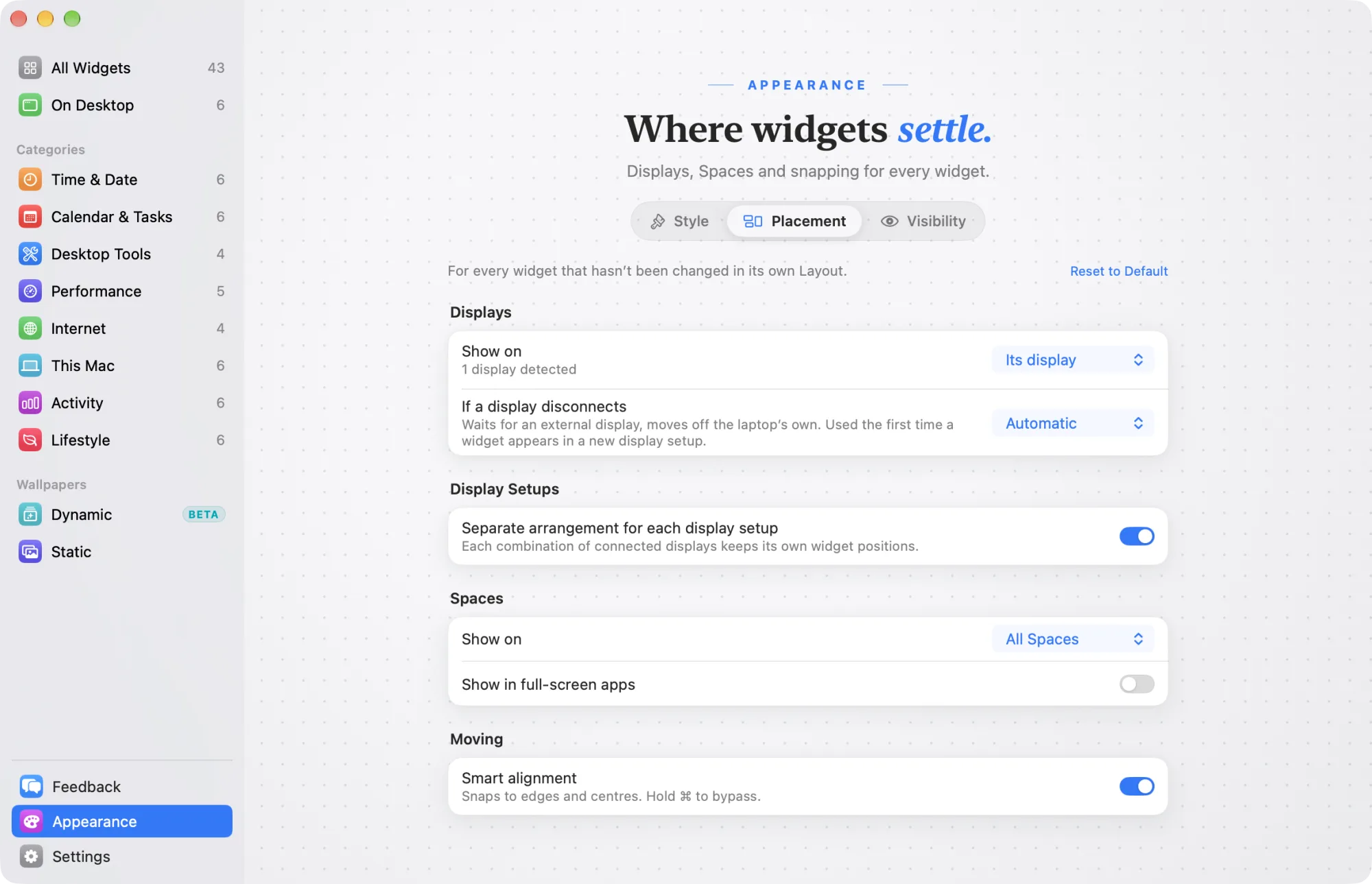
Display setups
A display setup is a combination of connected displays, such as your laptop on its own, or your laptop with a monitor at your desk. Each setup keeps its own arrangement of widgets.
This is on by default. To change it, go to Appearance › Placement and turn Separate arrangement for each display setup on or off. When it is off, every setup shares one arrangement.
Arrange a new setup
The first time you connect a new set of displays, while Separate arrangement for each display setup is on, a note appears at the top of the screen: New display setup. Click Arrange to move your widgets for this setup, or OK to keep them as they are. The note goes away by itself after about 15 seconds.
While you move widgets, the bar at the bottom of the screen names the setup you are arranging, for example “Arranging: Desk · 2 displays”.
Rename or forget a setup
Once you have used two or more setups, Appearance › Placement › Display Setups lists each one, with how many widgets and displays it has. The setup in use now is marked Current.
- To rename a setup, click its name and type a new one. Clear the name to go back to the names of its displays.
- To forget a setup, click Forget, then Forget. Its widget positions are deleted, and widgets hidden in it show again. You can’t forget the current setup.
Show a widget in some setups only
- Right-click a widget on your desktop and choose Hide in This Setup. The widget stays in your other setups.
- Or open the widget’s settings page, click Layout, and use Show in to choose All Setups or the setups you want.
These choices appear once you have used two or more setups. In the library, a hidden widget is marked Hidden here or Hidden everywhere. To bring it back, right-click its card and choose Show in This Setup.
When a display disconnects
If a display disconnects, in Appearance › Placement or a widget’s Layout tab, sets what happens to widgets on a display that goes away. Automatic waits for an external display to come back, and moves widgets off a laptop’s own display when you close the lid. A widget waiting for its display is marked Waiting for display in the library.
One widget on every display
To show a widget on all your displays, open its settings page, click Layout, and set Show on to All displays. Click Arrange next to Positions to place it on each display. Each display remembers its own position.
Widgets beside the Dock
You can place a widget in the space to the left or right of the Dock. Drag the widget there while the Widgetscape window is open, or during Move Widgets.
When Widgetscape places a widget for you, such as when you click Add, it keeps clear of the Dock.
Widgets on the Lock Screen
You can show widgets on the Lock Screen, so they stay visible while your Mac is locked. Anyone at your Mac can see them there.
Show a widget on the Lock Screen
- Open the widget’s settings page and click Layout.
- Under Lock Screen & Privacy, turn on Show on Lock Screen.
- Click Arrange to place it.
Widgets on the Lock Screen show only. You can’t click them until you unlock your Mac.
Arrange the Lock Screen
Click Arrange in a widget’s Layout tab, or in Appearance › Visibility next to Widgets on the Lock Screen. Move Widgets starts with Lock Screen chosen in the bar at the bottom of the screen.
- On the display with the menu bar, dashed outlines mark where macOS shows its Clock and Password field. Keep your widgets clear of them.
- + Widget lists the widgets on your desktop. Select or deselect one to show or hide it on the Lock Screen.
- Same as Desktop puts every Lock Screen widget where it is on your desktop.
- Switch between Desktop and Lock Screen in the bar to arrange each one.
- Click Done or press Return to keep your changes. Press Esc to undo them.
The Lock Screen has its own positions. Moving a widget there doesn’t move it on your desktop.
Dimming
Widgets on the Lock Screen fade softly after a minute, to protect OLED displays. They stay visible. To change this, go to Appearance › Visibility and use Dim on the Lock Screen and Dim to.
Important: Widgets on the Lock Screen rely on parts of macOS that Apple doesn’t document. On a version of macOS without them, widgets don’t appear on the Lock Screen. Everything else keeps working.
Burn-in protection
Widgets stay in the same place all day, which can leave marks on OLED displays over time. Shift widgets slightly over time, in Appearance › Visibility › Burn-in Protection, moves every widget by a few pixels every few minutes. It is on by default and works on the desktop and the Lock Screen.