
Account & privacy
Permissions and privacy
Open Settings › Privacy & Permissions to see what leaves your Mac, every permission your widgets use, and your choices.
What your widgets show stays on your Mac. Widgetscape asks for a permission only when a widget on your desktop needs it, never at launch.
Permissions widgets ask for
Clocks, system readings and most other widgets need no permission. These do:
| Permission | Asked for by | Why |
|---|---|---|
| Calendars | Calendar, Agenda, Day Timeline | To show your events. They stay on your Mac. |
| Reminders | Reminders | To show today’s reminders and mark the ones you check off as done. |
| Location | Weather and Sun Path, only when set to Automatic | To find your city. You can choose a city instead. |
| Photos | Photo Frame, when it shows your Photos library | To show the album or collection you choose. Pictures are resized on your Mac, never uploaded. |
| Automation | Now Playing | So its buttons can play, pause and skip in Music, Safari and Chrome. |
| Screen & System Audio Recording | Now Playing’s Equalizer style | To show live audio levels. No audio is recorded. |
| Paste from Other Apps | Clipboard | To keep what you copy. It stays on your Mac. |
| Files and Folders | Repo Pulse | To read the git status of repositories you add, never your files. |
| Local Network | Connection Check | To time how fast your router answers. Nothing else on your network is contacted. |
| Notifications | Widgetscape Agent | To tell you when a widget loses access you gave it, and for Page Watch alerts when Notify Me is on. |
An email account isn’t a macOS permission. You connect it yourself. See Calendars, email and location.
Allow a permission
When a widget needs a permission, it shows a key and a short line, such as “Calendar needs access to show your events”, with an Allow button.
You can allow it from any of these places:
- The widget on your desktop: click Allow.
- The widget’s settings page: click Allow in the banner at the top, or next to the permission on the Privacy tab.
- Settings › Privacy & Permissions: click Allow next to the permission under Permissions Your Widgets Use.
The first time, macOS shows its own prompt. If you turned the permission off before, Allow opens the right pane of System Settings › Privacy & Security instead.
Tip: In the sidebar, a key badge on On Desktop counts widgets that need setup. Open On Desktop and click a widget marked Needs Setup or Access Off.
Widgetscape or Widgetscape Agent
Widgetscape has two parts, and System Settings lists them by name:
- Widgetscape asks for Calendars, Reminders, Location and Photos.
- Widgetscape Agent draws your widgets. It asks for Automation, Screen & System Audio Recording, Paste from Other Apps, Files and Folders, Local Network and Notifications.
Turn on the name shown in each pane:
| Permission | Where to turn it on |
|---|---|
| Calendars | Turn on Widgetscape in Privacy & Security › Calendars. |
| Reminders | Turn on Widgetscape in Privacy & Security › Reminders. |
| Location | Turn on Widgetscape in Privacy & Security › Location Services. |
| Photos | Turn on Widgetscape in Privacy & Security › Photos. |
| Automation | Turn on your player under Widgetscape Agent in Privacy & Security › Automation. |
| Screen & System Audio Recording | Turn on Widgetscape Agent in Privacy & Security › Screen & System Audio Recording. |
| Paste from Other Apps | Choose Always Allow for Widgetscape Agent in Privacy & Security › Paste from Other Apps. |
| Files and Folders | Turn on the folders under Widgetscape Agent in Privacy & Security › Files and Folders. |
| Local Network | Turn on Widgetscape Agent in Privacy & Security › Local Network. |
| Notifications | Allow notifications for Widgetscape Agent in System Settings › Notifications. |
The floating helper
Screen & System Audio Recording needs you to add Widgetscape Agent to the list yourself. When you click Allow for it, a small helper appears under the System Settings window.
- Drag the icon from the helper into the list above it.
- Turn on Widgetscape Agent in the list.
The helper closes by itself once the permission is on. If dragging doesn’t work, click Show in Finder and drag the item from Finder instead.
If access is turned off later
If you turn off a permission a widget on your desktop uses, such as Calendars or Location, Widgetscape shows a notification, such as “Calendar access was turned off”, if notifications are allowed for Widgetscape Agent. Folder access and email accounts don’t notify. Click it to open Settings › Privacy & Permissions at that permission.
To stop these notifications, turn off Tell me if access is turned off under Notifications in Settings › Privacy & Permissions.
Each widget’s Privacy tab
Every widget that reads something has a Privacy tab on its settings page. Widgets that read nothing, such as clocks and timers, have none.
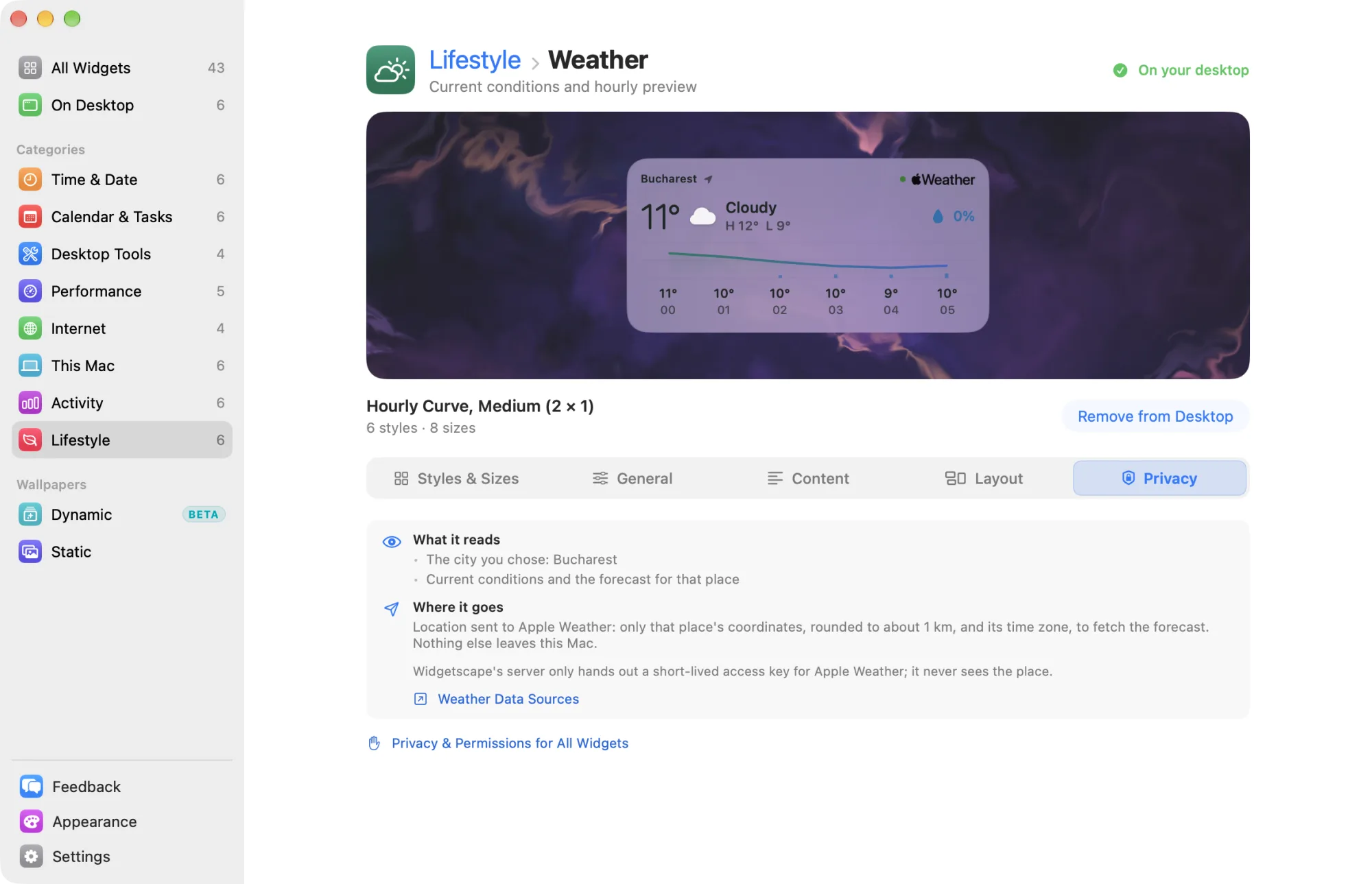
The tab shows:
- What it reads: the data the widget uses.
- Where it goes: Stays on this Mac, or where it is sent and why.
- Access: each permission and account the widget relies on, with its status and the one action that fits: Allow, Connect, Manage or Open Settings.
- The widget’s own privacy choice, where it has one. For example, On the desktop › Busy only hides event titles and places on Calendar, and Senders only hides subjects and previews on Email.
At the bottom, Privacy & Permissions for All Widgets opens Settings.
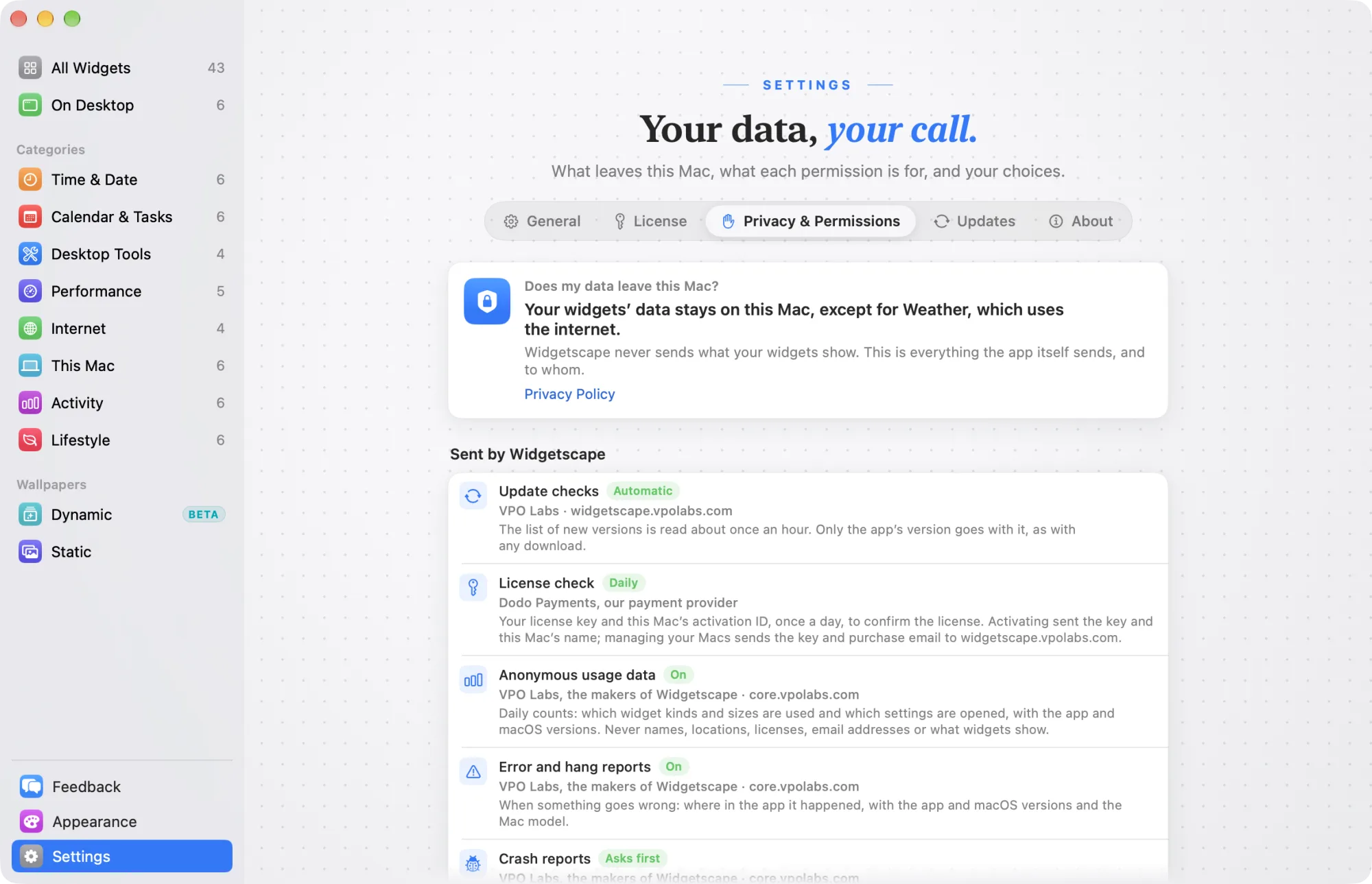
Settings › Privacy & Permissions
The page answers “Does my data leave this Mac?” first, then lists everything in detail.
Sent by Widgetscape
Everything the app itself sends, to whom, and whether it’s on:
- Update checks to widgetscape.vpolabs.com, about once an hour, with only the app’s version.
- License check with Dodo Payments, once a day, only when you have activated a license.
- Anonymous usage data, Error and hang reports, Crash reports, Feedback and Notices from the team to core.vpolabs.com.
- Wallpapers from cdn.vpolabs.com, only when you browse or use a downloaded wallpaper.
Like any connection on the internet, each one shows the server your Mac’s IP address.
Usage data
Widgetscape sends anonymous usage counts so VPO Labs can learn which widgets are used and whether new versions are stable. Usage data is on by default.
A report holds daily counts:
- Which kinds of widget are on your desktop, with their size, palette and display.
- How many minutes widgets and the Widgetscape window are on screen, how often the app and widgets start, and how long that takes.
- Actions such as adding a widget, opening a settings section, choosing Buy or answering a permission prompt.
- Whether you’re on the trial, free or Pro. Never your license key.
- The app and macOS versions, your Mac’s chip type and number of displays.
It never holds names, locations, your license key, your email address or anything a widget shows. The privacy policy lists every field.
To turn it off:
- Choose Settings › Privacy & Permissions.
- Under Sharing, turn off Share anonymous usage data.
Turning it off deletes anything waiting to be sent, and nothing more is counted.
To see exactly what the next report contains, click Show next to Usage data not sent yet.
Error, hang and crash reports
- Send error and hang reports sends technical details when something goes wrong, such as the app not responding for a few seconds. It’s on by default.
- Crash reports sets what happens after a crash: Ask Each Time (the default), Send Automatically or Never Send.
See Feedback and support.
Your data
- Identifiers: click Reset, then Reset Identifiers. New random identifiers replace the old ones, so later reports aren’t linked to earlier ones. Usage data not yet sent is deleted.
- Sent from this Mac: click Export to save what the Widgetscape team holds from your Mac as a file, or Delete to delete it from the server and from your Mac. Deleting can’t be undone.
The identifiers are random. They aren’t linked to you, your Mac or your license.
Permissions and your widgets
- Permissions Your Widgets Use lists each permission and account the widgets on your desktop use, with its status and which widgets use it.
- Other Permissions lists the rest, marked Not needed yet. Nothing is asked until a widget on your desktop needs it.
- Your Widgets shows where each widget on your desktop sends its data: On this Mac or Online.
To hide widgets during presentations and screen sharing, click Open Visibility. See Hide widgets and Presentation Mode.
Your license key and accounts
Your license key, email passwords and sign-in tokens are kept in the macOS Keychain. Removing an account deletes its tokens and cached data.