
Widgets
Desktop Tools widgets
Widgets you use with a click: launch apps, paste earlier copies, keep files close and jot notes. Click any widget in Desktop Tools to open its settings page, then click Add to Desktop.
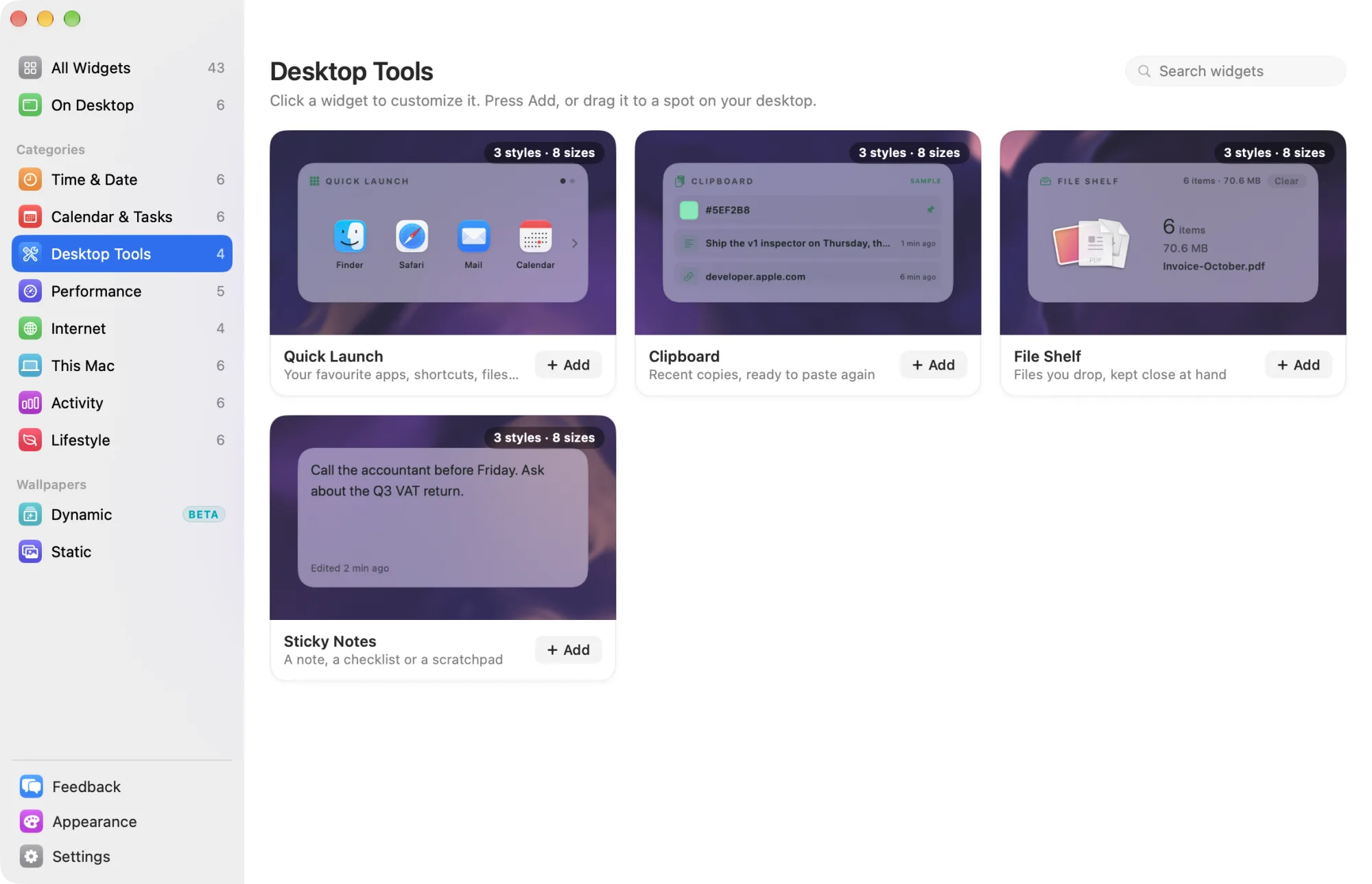
All four are Pro widgets. They work during the trial and need Widgetscape Pro after it. See Free widgets, trial and Pro.
Quick Launch
Your favorite apps, shortcuts, folders, files and links, one click away. Pro
- Styles: Grid (default) shows icons in a grid. List shows names and details, one per row. Dock is a compact row of icons.
- Default size: Medium (2×1). A new widget starts with eight Apple apps.
- Needs: no permission.
To add a tile, open the Content tab, click Add and choose App, Shortcut, Folder, File or Link. You can add up to 24 tiles. Drag rows to reorder them, or use … to rename, move or remove one. Renaming a tile never renames the file.
- Names (General): shows names under each icon on Grid and Dock.
- Title (Content): your own name for the list, shown in the header.
- App and file icons (Content): turn off to show a symbol for every tile.
- Icon size (Content): Small, Regular or Large.
- Website icons (Privacy): fetches each link’s icon from its site. Turn it off to show a symbol and keep link tiles offline.
On the desktop, click a tile to open it. A shortcut runs through the Shortcuts app. A folder or file outside your standard folders shows a lock: click it once and choose Allow to give access. When tiles don’t fit, they go onto pages; use the arrows or dots, or swipe.
Clipboard
Your recent copies, ready to paste again. Pro
- Styles: List (default), Tiles (previews in a grid) and Latest (the newest, large).
- Default size: Medium (2×1).
Nothing is read until you click Start Capturing on the widget. On macOS 15.4 and later, macOS then asks once. To keep copies without an alert each time, choose Always Allow for Widgetscape Agent in System Settings › Privacy & Security › Paste from Other Apps. See Permissions and privacy.
| Setting | Tab | What it does |
|---|---|---|
| Items | General | Keeps 5, 10, 15 or 20 items. Pinned items don’t count. |
| Images, Files, Colours | Content | What to keep besides text and links. |
| Source app | Content | Shows which app each item came from. |
| Skip apps | Content | Copies from these apps are never read, such as your password manager. |
| Capture | Privacy | Pauses or resumes keeping what you copy. |
| Storage | Privacy | Encrypted on this Mac or Memory only. |
| Forget items | Privacy | From Never to After a week. Pinned items stay. |
| Blur previews | Privacy | Hides the contents until you point at the widget. |
| Clear History | Privacy | Removes every item, pinned ones too. |
Items a password manager marks as hidden are skipped. On the desktop, click an item to copy it again. Click its pin to keep it at the top. Use the header buttons to pause capture or clear unpinned items.
File Shelf
Files you drop, kept close at hand. Pro
- Styles: Stack (default) fans the newest three, like a Dock stack. Shelf is a row that scrolls. Grid shows every item.
- Default size: Medium (2×1).
- Needs: no permission. The shelf keeps a link to each file, never a copy.
Drag files or folders onto the widget to keep them there, up to 50 items. When a file is deleted or moved to the Trash, it leaves the shelf.
- Remove items after (Content): 1 Day, 7 Days (default) or Never. Items leave the shelf, never the disk.
- Clear Shelf (Content): empties the shelf. Your files stay where they are.
On the desktop:
- Click an item to preview it with Quick Look. Double-click to open it.
- Drag an item out to move it. Hold ⌥ to copy it instead.
- Point at an item for Show in Finder and Remove from Shelf.
- With Stack, click the fan to open every item inside the widget.
- Right-click for Shelf ▸ Show Newest in Finder and Clear.
Sticky Notes
A note, a checklist or a scratchpad on your desktop. Pro
- Styles: Note (default) for free text. Checklist for items to check off. Scratchpad for monospaced text on ruled lines. Note and Scratchpad share the same text.
- Default size: Medium (2×1).
- Colour (General): Glass (default), Yellow, Mint, Pink or Lavender.
- Needs: nothing. What you type stays with the widget on this Mac.
On the desktop, click in the note and type. Press Esc, or click elsewhere, when you’re done. Notes are plain text, up to 5,000 characters.
In a checklist, click a circle to check an item off. Type in Add item and press Return to add the next one. A checklist holds up to 50 items.
You can also edit the text on the Content tab. Reset to Default never clears what you wrote.