
Widgets
Performance widgets
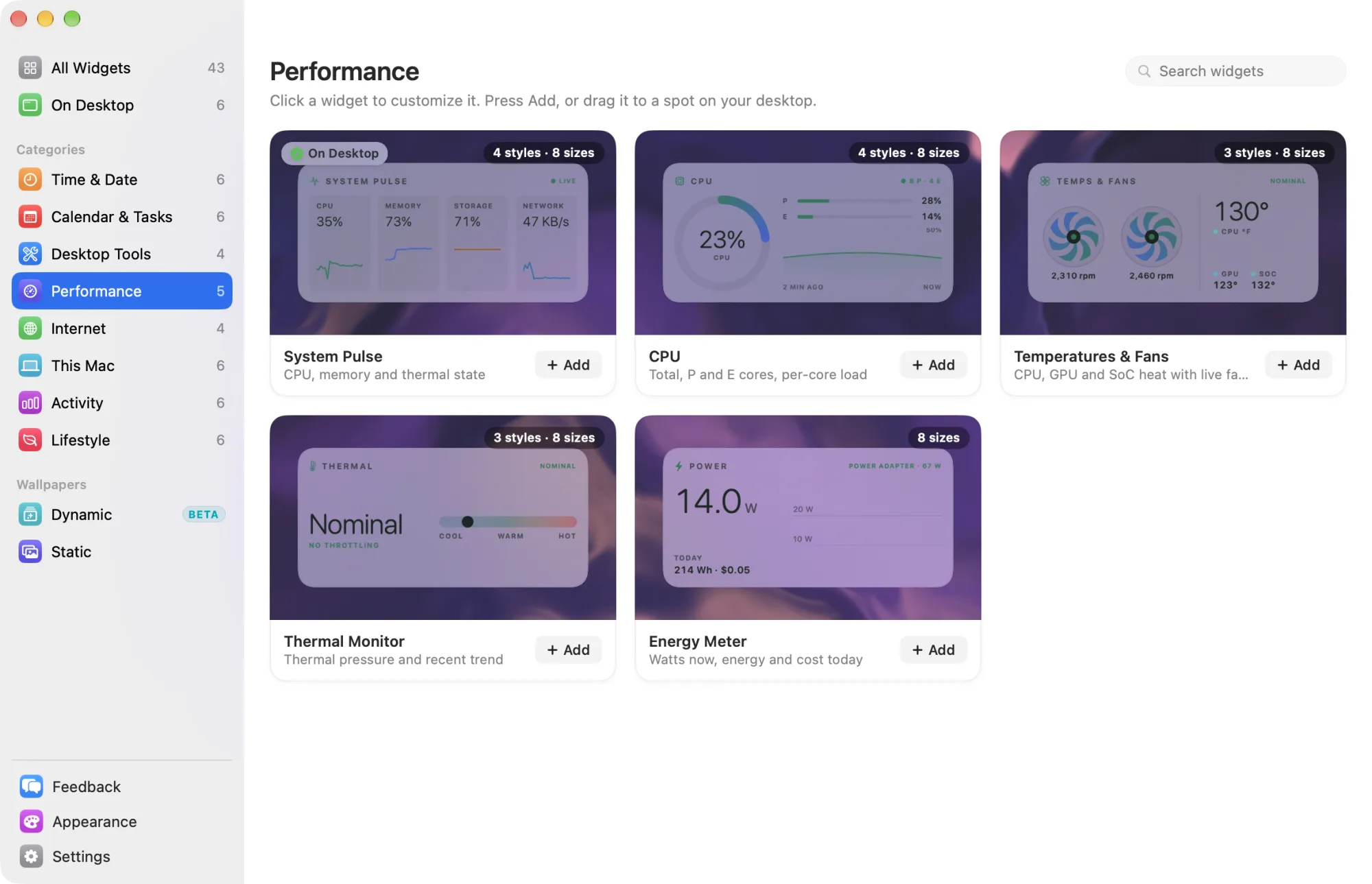
Live load, heat and power for your Mac. Click any widget in Performance to open its settings page, then click Add to Desktop.
None of these widgets needs a permission, an account or the internet. What they read stays on this Mac. Readings pause while nobody can see your displays, for example while they sleep.
Widgets marked Free are among the 8 free widgets that keep working after the trial. The others need Widgetscape Pro. See Free widgets, trial and Pro.
System Pulse
CPU, memory and thermal state in one widget. Free
- Styles: Overview (default), Signal (CPU first), Orbit (round gauges) and History (CPU and memory over time).
- Default size: Medium (2×1).
- Settings: CPU and memory always show. On the Content tab, turn Storage, Network and Thermal on or off.
The header status reads Live, Busy when the CPU is at 80% or more, or Pressure when the Mac runs hot.
On the desktop, click the widget to open System details. Its tabs cover Overview, CPU, GPU, Memory, Network, Thermal and Processes; press ⌘1 to ⌘7 to switch. Open Activity Monitor is in its header. Click the memory figure for a memory card with the same figures as Activity Monitor.
The process list may be empty on some Macs.
CPU
Total load, P and E cores, and per-core load. Pro
- Styles: Gauge (default) shows the total in a ring. Cores shows every core, P and E. Heatmap shows cores over time. History shows user and system load over time.
- Default size: Medium (2×1).
- On the desktop: no click actions.
Settings, on the Content tab:
- Top processes: the busiest apps, at Landscape and larger. It shows only on the desktop.
- Load average: over 1, 5 and 15 minutes, against the number of cores. It shows at Landscape and larger.
Values show “—” for a few seconds after the widget appears, until there are two readings.
Temperatures & Fans
CPU, GPU and SoC temperatures with live fan speeds. Pro
- Styles: Fans (default) shows live fan speeds first. Heat shows thermometers in heat colors. Chart shows the last ten minutes.
- Default size: Medium (2×1).
- On the desktop: no click actions.
Settings:
- Unit (General): follows Language & Region, or choose Celsius (°C) or Fahrenheit (°F).
- System power (Content): adds the watts the whole Mac draws, where it reports them.
The header status shows the Mac’s thermal state: Nominal, Fair, Serious or Critical. No admin password or extra helper is needed. On a Mac without fans the widget shows “Fanless”. A fan that has stopped reads “Off”.
Thermal Monitor
macOS thermal pressure and its recent trend. Pro
- Styles: Status (default) shows the current state. Trend shows recent pressure. Headroom shows how much performance is available.
- Default size: Medium (2×1).
- Settings: the style only. There is no Content tab.
- On the desktop: no click actions.
The widget shows the thermal state macOS reports: Nominal, Warm, Hot or Critical, with a short line such as “Full performance” or “Cooling required”. Thermal Monitor uses its own names for the same four macOS states. It doesn’t read temperatures or fans; use Temperatures & Fans for those.
Energy Meter
Watts now, plus energy and cost today. Pro
- Styles: one look; there is no style to choose. Larger sizes add peak and average watts, this month, and use by hour.
- Default size: Medium (2×1).
- On the desktop: no click actions.
Settings:
- Price per kWh (Content): your electricity price, used for the cost in your Mac’s currency. The default is 0.25.
- History › Delete (Privacy): removes the saved totals. Widgetscape asks first, and this can’t be undone.
The header shows whether the Mac runs on battery or a power adapter. Energy is counted only while the widget is on the desktop and the screen is on. Hourly totals are kept on this Mac for 400 days. If your Mac doesn’t report its power, the widget says “Power reading not available on this Mac”.
Related
- Change a widget
- Permissions and privacy
- Previous: Desktop Tools widgets
- Next: Internet widgets