
Account & privacy
Free widgets, trial and Pro
To unlock every widget, choose Settings › License and click Buy Widgetscape Pro, or Enter License Key if you already bought it.
Free widgets
8 widgets stay free forever: Time, Analog Clock, Calendar, Focus Timer, System Pulse, Batteries, Weather, Moon Phase. They keep every setting and style.
Every other widget is part of Widgetscape Pro. After the trial, those widgets have a PRO badge in the library.
The free trial
Every download includes 14 days of every widget. The trial starts the first time you open Widgetscape. You don’t need an account or a card.
To see how many days are left:
- Look at the Free trial card at the bottom of the sidebar, or the chip at the top of the library, such as Trial · 9 days left.
- Or choose Settings › License. The status reads Free trial, with the days left and the day the trial ends.
Widgetscape reminds you 3 days before the trial ends, and again when it ends. The reminder appears as a banner in the Widgetscape window. If you allowed notifications for Widgetscape Agent, it also appears as a notification.
Note: Reinstalling Widgetscape doesn’t start a new trial.
When the trial ends
Nothing is deleted.
- The 8 free widgets keep working.
- Pro widgets on your desktop stay where they are. Each shows a small locked card with Buy and Enter License.
- Every Pro widget keeps its settings, and you can still change them in the Widgetscape window.
Unlock Pro and the widgets come straight back.
If you add a Pro widget after the trial, Widgetscape shows what Pro includes instead of adding it. Click Buy Widgetscape Pro, Enter License Key or Not Now.
Buy Widgetscape Pro
Widgetscape Pro costs €9.99 + VAT, paid once. There is no subscription. One license covers up to 2 Macs that you own or use.
- Choose Settings › License.
- Click Buy Widgetscape Pro.
- Pay on the checkout page that opens in your browser.
- On the confirmation page, click Open in Widgetscape.
- In Widgetscape, click Activate.
Settings › License shows Widgetscape Pro, and Pro widgets unlock.
You can also click Buy Pro on the sidebar card or on a trial reminder banner, or Buy on a locked widget.
Dodo Payments, the merchant of record, handles the payment, adds VAT for your country and emails your license key with your receipt.
Enter your license key
- Choose Settings › License.
- Next to Already bought it?, click Enter License Key.
- Paste the key from your purchase email.
- Optionally, type your purchase email. You need it to see and free the Macs your license is active on.
- Click Activate.
Your Mac appears in the license’s activations under the name set in System Settings › General › About. The key is kept in the macOS Keychain.
Tip: Can’t find your key? Write to support@vpolabs.com.
Your license in Settings
Once Pro is active, Settings › License shows Widgetscape Pro with your masked email and key, and:
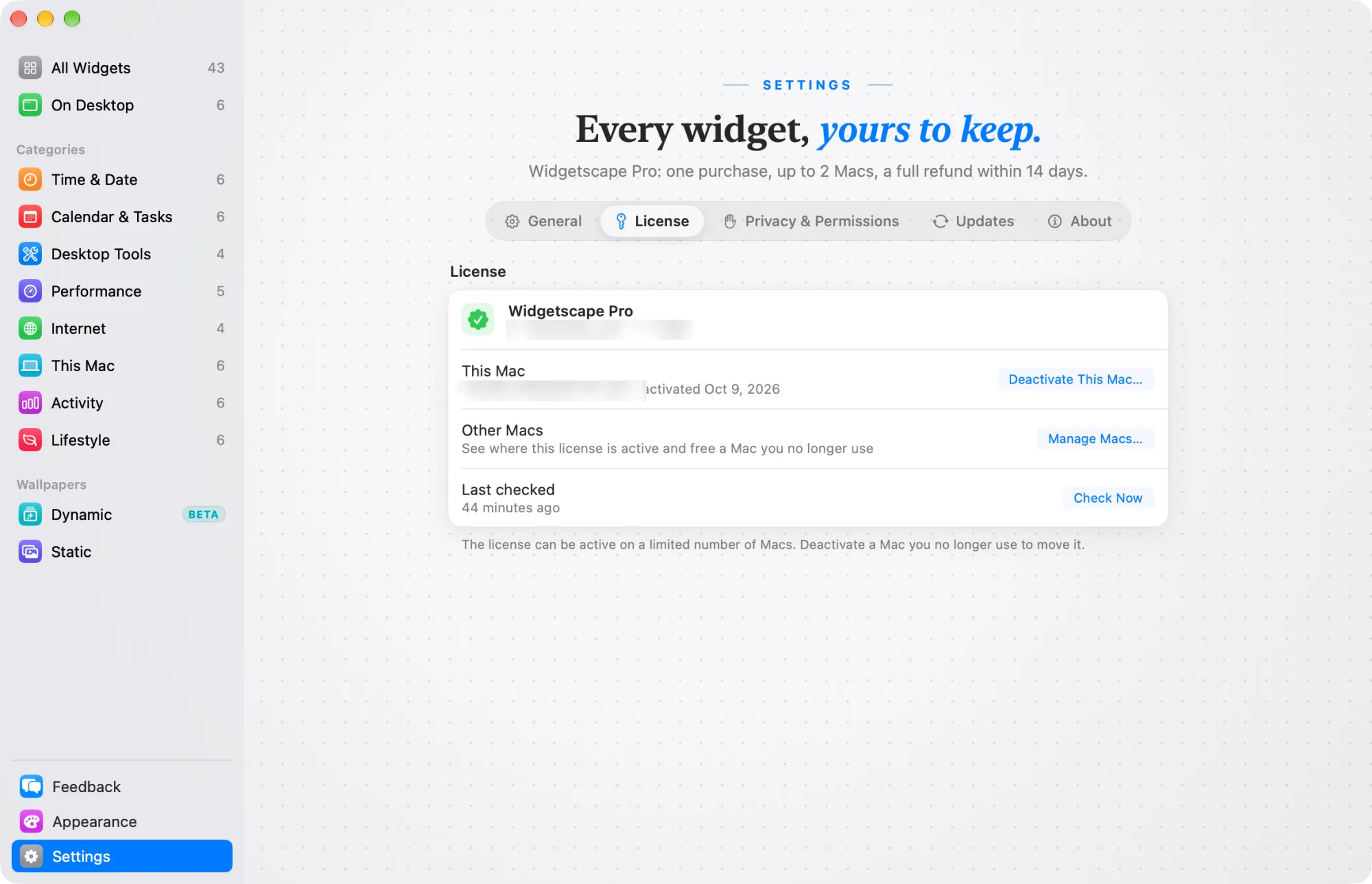
- This Mac: its name and activation date, and Deactivate This Mac.
- Other Macs: Manage Macs shows where the license is active.
- Last checked: when the license was last confirmed, and Check Now.
Use Pro on another Mac
A license works on up to 2 Macs at the same time.
Deactivate This Mac
- On the Mac you no longer use, choose Settings › License.
- Click Deactivate This Mac, then Deactivate.
Pro widgets on that Mac pause and keep their settings. Free widgets keep working. You can then activate the same key on another Mac.
If the license server can’t be reached, Widgetscape offers to remove the license from this Mac anyway. Click Remove from This Mac. The activation then stays counted until you free it on the License page or write to support@vpolabs.com.
Free a Mac you can’t reach
If the key is already active on 2 Macs, activating it on a new one shows This key is already active on 2 Macs.
- If asked, type the email you bought Widgetscape Pro with.
- Next to the Mac you no longer use, click Deactivate.
- Click Deactivate and Use This Mac.
On a Mac where Pro is active, Manage Macs in Settings › License shows the same list.
You can also free a Mac on the website’s License page with your key and purchase email.
Offline use
Widgetscape checks your license with Dodo Payments at most once a day. If it can’t reach the server, Pro keeps working for 14 days after the last successful check. Settings › License then shows Widgetscape Pro · couldn’t verify and the last day Pro stays unlocked.
Connect to the internet within that time, or click Check Now. After 14 days without a check, Pro widgets pause until the license is checked again.
License problems
If something is wrong with the license, Settings › License says what and offers the fix. Pro widgets pause and keep their settings.
| Status | What to do |
|---|---|
| License no longer valid | The key was refunded or disabled. Write to support@vpolabs.com if this is a mistake. |
| This Mac was deactivated | Click Activate Again. This uses one of the license’s activations. |
| License not found | Click Enter License Key and paste the key from your purchase email. |
| License needs to be verified | Connect to the internet, then click Check Now. |
For errors while activating, see Troubleshooting.
Refunds
If you’re not happy, ask for a full refund within 14 days of purchase, for any reason. Write to support@vpolabs.com with your order reference. Your license key is disabled when the refund goes through.
Dodo Payments, the merchant of record, handles payments and refunds. See the terms.